
Creative MCP
Webflow site visuals
An agent generates on-brand Webflow heroes, section stills, and CMS images with Brandiseer; a person or the agent then places those image URLs in Webflow Assets or CMS image fields.
- BrandiseerBrand memory and on-brand stills via MCP or REST
- WebflowAssets library, Designer placement, and CMS image fields
- CursorAgent host for Brandiseer MCP or REST
- Claude CoworkAgent host for Brandiseer MCP or REST

Brandiseer + Webflow (+ Cursor or Claude Cowork)
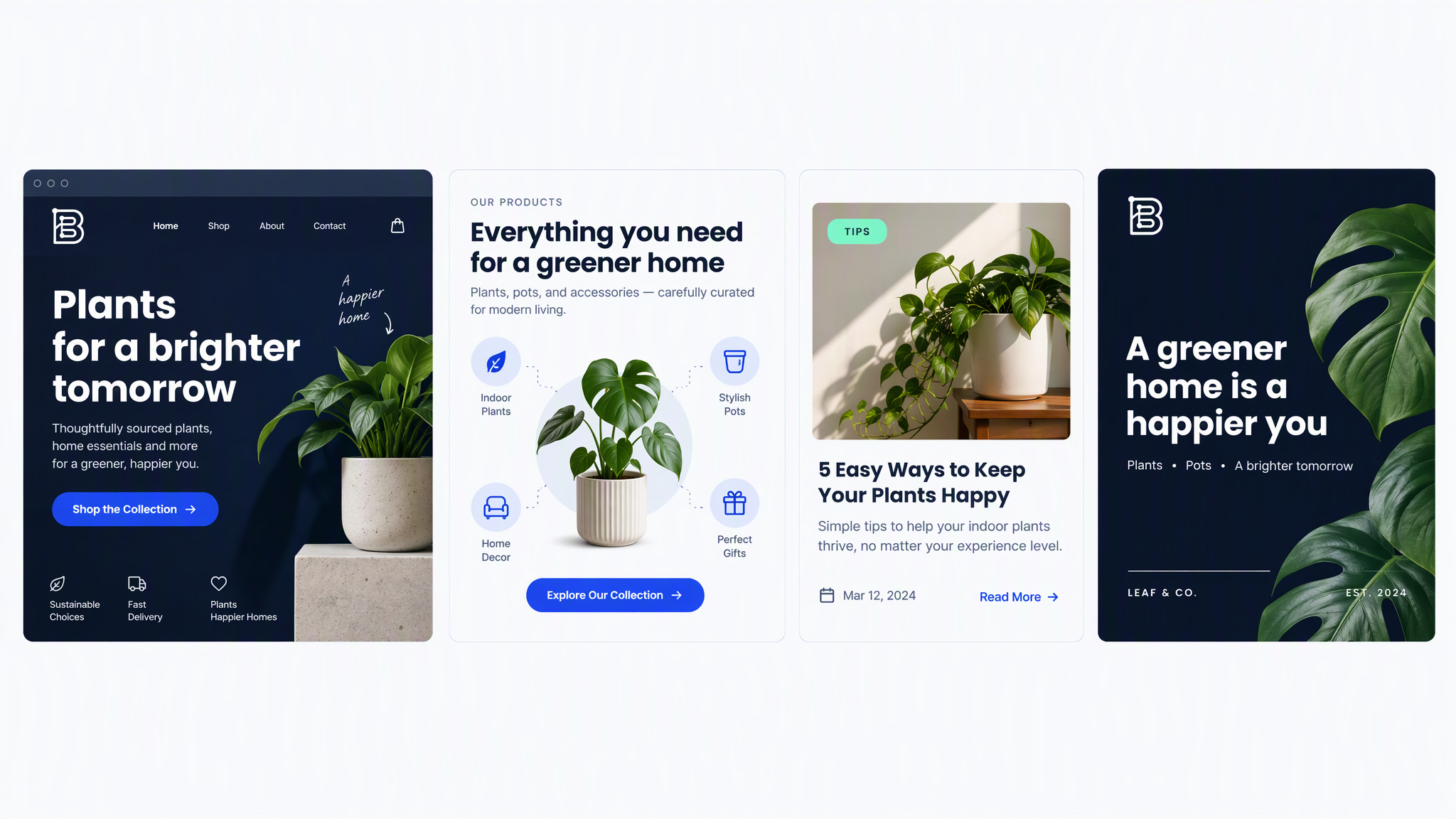
By the end of this guide you will have a repeatable way to make on-brand stills for a Webflow site. An agent in Cursor or Claude Cowork calls Brandiseer, gets an imageUrl for a homepage hero, a section still, a CMS card, or an OG image, and you place that file in Webflow.
Brandiseer owns the brand memory and the still. Webflow owns the site. Brandiseer does not open Webflow Designer, does not assign an image to a static element, and does not publish the site. A person uploads the file in the Assets panel and places it in Designer, or, when you already have a Webflow site API token, an agent updates a CMS image field by following Webflow's Data API docs.
People who brief stills inside Slack should use Slack creative desk. Recurring captions and Buffer scheduling should use Social media automation. Schedules and webhooks in Zapier, Make, or n8n should use Always-on creative automation. This guide does not recreate any of those.
Who it's for
- Marketing and web teams who ship on Webflow and need a homepage hero, section backgrounds, blog or CMS cards, and OG images without opening a separate design tool for every page
- Agencies that keep one Brandiseer Brand ID per client and one Webflow site per client
- Operators who can copy an
imageUrlinto the Webflow Assets panel, or who already have a Webflow site API token and want CMS image fields filled from that URL
Ideal customer profile: a team whose pages already live in Webflow, whose brand already lives in Brandiseer, and whose missing piece is a brand-safe still plus a clear handoff into Assets or a CMS image field.
Why Brandiseer in this stack
Webflow is where the page is built. Cursor or Cowork is the agent that turns a page brief into a layout. Brandiseer stores the logo and visual identity once, then applies that memory on every still. The prompt carries subject, layout, composition, and on-image text. It does not restate colours, fonts, mood, or visual style.
A Webflow site drifts when every hero is a one-off export from a general image tool. Brandiseer keeps the still on the same brand as the rest of the campaign. Webflow still decides where the file sits and when the site publishes.
This is a different job from the sibling guides:
- Slack creative desk is a request-and-return desk. A person writes a brief in Slack and an agent posts a still back in the thread.
- Social media automation writes captions and schedules posts with Buffer.
- Always-on creative automation is the HTTP step in Zapier, Make, or n8n.
- This guide generates site stills and hands
imageUrlto Webflow. Brandiseer does not push into Webflow Designer by itself.
Stack
| Layer | Tool | Role |
|---|---|---|
| Brand visuals | Brandiseer MCP and/or REST v2 | Generate on-brand stills. MCP uses Authorization: Bearer. REST uses X-API-Key: bds_... |
| Agent host (pick one) | Cursor | Read the page brief, call Brandiseer, return imageUrl and placement notes |
| Agent host (pick one) | Claude Cowork | Same contract as Cursor for interactive site stills |
| Site | Webflow | Assets library and Designer for static heroes and sections. CMS image fields for collection items |
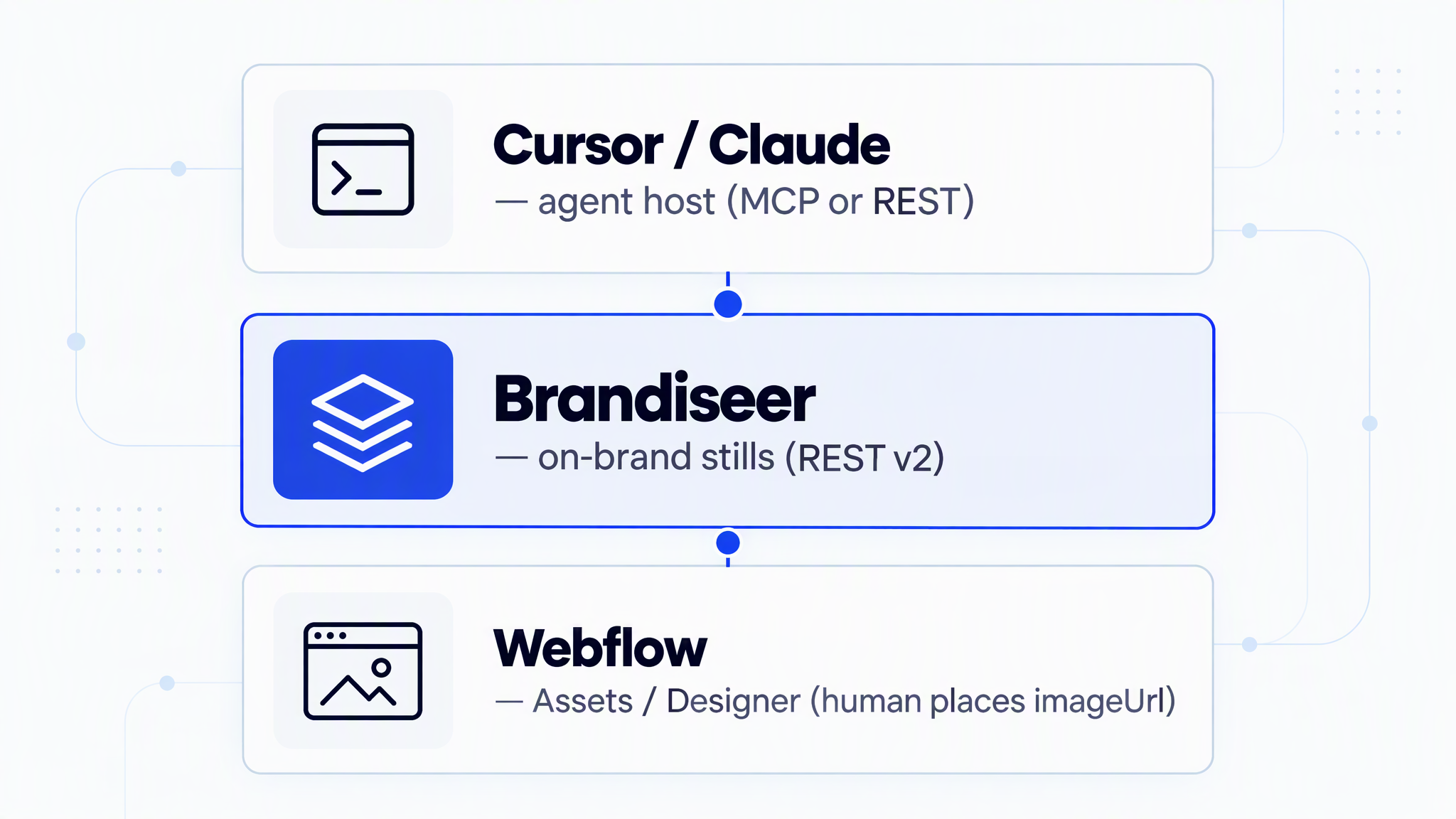
You only need one agent host. The Brandiseer contract is the same on both. Webflow has no Brandiseer app that drops a still onto the canvas. The handoff is an image URL, a download, or a CMS image write that you perform with Webflow's own API.
Brandiseer docs: Developers · guide/docs · guide/image · Settings → API
Webflow docs: Developers · Site token · CMS items · Image field values · Assets
Endpoint tables and HTTP contracts are in API reference at the end of this guide.
Webflow (placement, not generation)
Three practical paths. Use the first one until a CMS write is actually needed.
- Assets and Designer (default). Download the file or copy
imageUrl. In Webflow, upload it in the Assets panel and assign it to the hero, section, or page image. This is how static homepage heroes and section backgrounds get onto the canvas. Brandiseer stops at the URL. - CMS image field (optional). When you already have a site API token, update the collection item's image field through the Webflow Data API. Webflow documents this. The still must be a publicly fetchable URL, and Webflow's image field limit is 4MB. See Setup stage 6. A successful item update stages CMS data. It does not publish the site, and it does not move a static Designer element.
- Asset API (optional, heavier). Webflow's asset upload is a separate flow (file hash, then the upload Webflow returns). Read Working with Assets. Files in the Assets panel are available to designers. The upload itself does not assign the file to a hero.
How it works
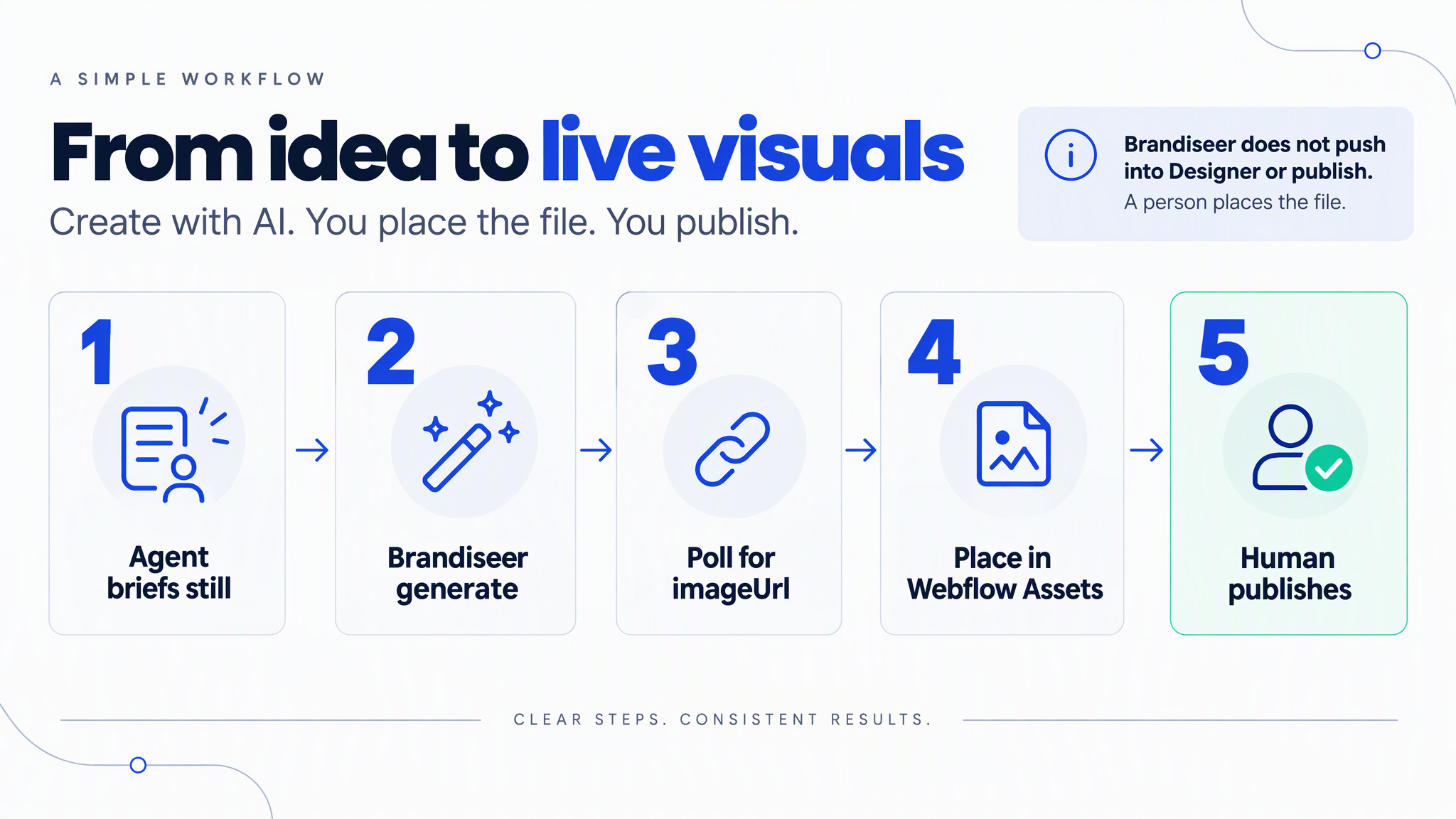
Architecture, from page brief to a still sitting in Webflow:
- You store the brand once in Brandiseer (logo and reference visuals teach the look).
- The agent host (Cursor or Cowork) has Brandiseer MCP or REST, the Brand ID (
bds_c_...), and the standing instructions in this guide. - You name the slot: homepage hero, section background, CMS or blog card, or OG image. The agent rewrites that brief into subject, layout, and on-image text, then sets
aspectRatio,resolution,mode, anduseLogoas fields. - Brandiseer returns
imageUrl. The agent reports the URL, the crop, the mode, and a one-line placement note (which Webflow element or CMS field it is for). It does not claim the Designer canvas changed. - A person uploads the file in Webflow Assets and places it in Designer, or the agent updates a CMS image field with the site token by following Webflow's docs. A person publishes the site when the page is ready.
Connect the workflow
Give the agent access to Brandiseer
Create an API key for the runnable setup, or connect the hosted MCP endpoint when your agent supports MCP.
What you need
- Company website URL, if the brand is not in Brandiseer yet
- Brandiseer account with at least one finished brand profile
- API key (
bds_...) from Settings → API or Developers - Brand ID (
bds_c_...) for every brand the agent may call - Credits for the stills you actually generate (see the table in Limits & FAQ)
- Cursor or Claude Cowork, with Brandiseer MCP or a way to call REST
- A Webflow site you can edit
- Access to the Webflow Assets panel and Designer for static heroes and sections
- Optional, only for CMS writes: a Webflow site API token from Site settings, Apps & integrations, API access, with the CMS write scope Webflow documents (
CMS:writeon the update-item reference). Store it in the agent secret store. See Site token - Optional: the collection id, item id, and image field slug for the CMS item you want to update. Read them from Webflow. Do not guess slugs
Setup
Stage 1: Add your brand on Brandiseer
- Go to brandiseer.com. In the homepage input, enter your company website URL and click Try My Brand.
- Wait about one minute while Brandiseer analyses the site and picks a logo and visuals.
- Review those visuals carefully. They teach Brandiseer your look. Every later Webflow still is influenced by what you leave here.
- Remove anything off-brand (partner logos, stock, irrelevant screenshots). Add campaign creatives or product photography that match the look you want.
- Click Add Brand, sign up if prompted, then wait about 30 seconds for the brand profile to finish.
Agencies repeat this once per client. Do not point two client sites at one Brand ID.
Stage 2: API key and Brand ID
- Open brandiseer.com/developers or Settings → API.
- Create an API key (
bds_...). Put it in the agent host's secret store. Do not paste it into a Webflow CMS text field, a page, Slack, or a git repo. - Copy the Brand ID (
bds_c_...). - Confirm the key with
GET https://brandiseer.com/api/v1/creditsandGET https://brandiseer.com/api/v1/brands, headerX-API-Key. The credits JSON includescredits. The brands list includes each brandid. - Optional reachability check, no key required:
GET https://brandiseer.com/api/v1/healthreturns{ "status": "ok" }.
Read guide/docs and guide/image once while you write the standing instructions. Those pages are the live contract if a field name ever moves.
Stage 3: Connect Brandiseer to the agent host
Use Cursor or Cowork. One host is enough.
A. MCP
- Add the Brandiseer MCP server at
https://brandiseer.com/api/mcp. - Authenticate with
Authorization: Bearerand the API key, in the secret field your host provides. - Confirm the tool list shows
brandiseer_list_brands,brandiseer_check_credits, andbrandiseer_generate_image. If a fourth Brandiseer tool appears, ignore it until guide/docs documents it.
B. REST
- On Developers, open View Docs and use Copy for LLM if you want the reference inside the session.
- Tell the agent to prefer
POST https://brandiseer.com/api/v2/generateorPOST https://brandiseer.com/api/v2/generate/asyncwithX-API-Key. - If Design mode times out, switch that call to async and poll
GET https://brandiseer.com/api/v2/jobs/:jobIdevery 3 to 5 seconds.
Stage 4: Save the standing instructions
- Paste the System prompt from this guide into the Cursor rule or Cowork instructions that will run site stills.
- Fill the defaults the prompt asks for: Brand ID, default crops per slot, resolution, mode, and whether
useLogois on when the brief is silent. - Ask the agent to call
brandiseer_list_brands(orGET /api/v1/brands) and confirm the Brand ID exists before the first paid still.
Stage 5: Smoke test a hero in Assets and Designer
- Ask for one homepage hero with a layout-only brief (the Spring hero in Example flows).
- Confirm the agent checked the brand, avoided colour and mood words, and returned
imageUrlplus crop and mode. - Open the Webflow site, upload that file in the Assets panel, and assign it to the hero in Designer.
- Leave the site unpublished if you are only proving the handoff.
- Send a second brief that only says "make the hero premium and moody". The agent should ask what is physically in the frame instead of generating.
Stage 6: Optional CMS image field
Skip this stage if Designers will place stills by hand. Use it only when a collection item already has an image field and you already have a site token.
- Create the site token in Webflow: Site settings, Apps & integrations, API access. Follow Site token. Requests use
Authorization: Bearerand that token. This is not the Brandiseer key. - In Webflow's docs, list collections and items until you have the real
collection_id,item_id, and the image field slug. The slug is defined by that collection. Manage collections and items is the walkthrough. Field types and item values is the image value reference. - Generate the still in Brandiseer first. Webflow's image field accepts a publicly reachable
url, with an optionalalt, and documents a 4MB maximum. IfimageUrlis not publicly fetchable, or the file is over 4MB, stop the API write. Download the file, compress or regenerate at1Kor2K, and upload it in the Assets panel instead. - Update the staged item with Webflow's documented call:
PATCH https://api.webflow.com/v2/collections/{collection_id}/items/{item_id}. The reference page is Update Single Item. Required scope on that page isCMS:write. Put the image underfieldDatausing the field slug and the shape in the field-types doc (an object withurland optionalalt). Do not invent extra Webflow fields. - Read the draft and publish notes on that same Update Single Item page before you choose
isDraft. A staged update is not a site publish. Do not publish the site in the smoke test. - Confirm the item in the Webflow CMS shows the new image as a draft or staged change. Then stop.
Webflow's asset API is a different procedure (an MD5 fileHash, then the upload URL Webflow returns). Use Working with Assets if you specifically need the file in the asset library via API. That upload still does not place a static hero.
Prompting rules for Brandiseer images
When the agent builds prompt:
- Keep subject, layout, composition, and on-image text (what the words say and where they sit).
- Never send brand colours, fonts, mood, or visual style. Brand memory already applies those. Style words fight the brand and produce off-brand stills.
- Put crop in
aspectRatio, quality inmode, pixel size inresolution, and logo on/off inuseLogo. Those are body fields, not prompt prose. - Map the Webflow slot to a documented ratio. Homepage hero and full-bleed section:
16:9. CMS or blog card:16:9,4:3, or1:1, matching the component. Portrait site slots:9:16. OG and link-preview images:16:9. Brandiseer does not offer a 1.91:1 OG ratio. Crop in Webflow if the slot is tighter than 16:9. - Prefer
designfor finished site stills.fastis the API default if you omitmode, and it is the right fallback if a design job fails once. - Prefer
1Kor2Kwhen the file must pass Webflow's 4MB image limit. Check the file size before a CMS write.4Kis optional and easier to reject. - Set
useLogotrue only when the brief asked for a logo (or your default says so). Page headings that Webflow's type styles will render should stay off the image. Say "empty region" for that area instead of describing a font. - Full rules: Prompt compatibility.
System prompt
Paste this into Cursor or Cowork as the standing instructions for site stills. Replace the placeholders before the first generate.
You generate on-brand stills for a Webflow site. Brandiseer returns an image
URL. You do not push pixels into Webflow Designer, and you do not publish
the Webflow site.

Brandiseer:
- MCP: https://brandiseer.com/api/mcp with Authorization: Bearer.
  Tools you may call: brandiseer_list_brands, brandiseer_check_credits,
  brandiseer_generate_image. Do not invent tool names.
- REST: X-API-Key: bds_... (secret store only).
  Prefer POST https://brandiseer.com/api/v2/generate
  or POST https://brandiseer.com/api/v2/generate/async
  then poll GET https://brandiseer.com/api/v2/jobs/:jobId every 3 to 5 seconds
  until data.status is done or failed, or about 10 minutes have passed.
- Live contract: https://brandiseer.com/guide/docs and
  https://brandiseer.com/guide/image

Defaults for this site (fill in once):
- Brand ID: bds_c_...
- Hero and section aspectRatio: 16:9
- CMS card aspectRatio: ask if the component is not known (16:9, 4:3, or 1:1)
- OG aspectRatio: 16:9 (there is no 1.91:1 Brandiseer ratio)
- mode: design
- resolution: 2K (use 1K if a 4MB Webflow limit is in play)
- useLogo when the brief is silent: false
- Multi-brand map, if any: brand name to bds_c_...

On every request:
1. Resolve brandId from the brief or the default. If more than one brand
   exists and the brief does not name one, ask. Never fall through to
   another client's Brand ID.
2. Check credits before a batch (brandiseer_check_credits or
   GET https://brandiseer.com/api/v1/credits). A single still can proceed
   if the last known balance covers the mode and resolution in the table
   you were given. On 402, stop.
3. Rewrite the brief into subject, layout, composition, and on-image text.
   Strip colours, fonts, mood, and visual style. If stripping leaves no
   physical subject, ask what is in the frame. Do not generate.
4. Choose aspectRatio from the slot. Put resolution, mode, and useLogo in
   API fields, not in the prompt.
5. Generate one still. Return imageUrl, aspectRatio, mode, resolution,
   useLogo, and a placement note: Assets/Designer (hero, section, or OG)
   or the CMS collection and field the human named.
6. Do not tell the user the Webflow canvas changed unless a Webflow write
   you actually performed returned success.

Webflow, only when the human already supplied a site token and asked for
a CMS image update:
- Authorization: Bearer, the Webflow site token. Never the Brandiseer key.
- Follow https://developers.webflow.com/data/reference/field-types-item-values
  and https://developers.webflow.com/data/reference/cms/collection-items/staged-items/update-item
- Image fields need a public url and are documented at a 4MB maximum.
  If the Brandiseer file is larger or not publicly fetchable, tell the
  human to upload it in the Assets panel. Do not invent a workaround URL.
- Use the collection_id, item_id, and field slug the human or a prior
  Webflow read gave you. Do not guess slugs.
- PATCH https://api.webflow.com/v2/collections/{collection_id}/items/{item_id}
  stages the item. Read Webflow's draft and publish notes on that page.
  Do not publish the site unless the human explicitly asks after they
  have reviewed the staged item.
- Static heroes and section backgrounds stay on the Assets and Designer
  path. Do not claim an API call moved a Designer element.

Out of scope:
- Slack replies, Buffer scheduling, and Zapier, Make, or n8n scenarios.
- Legal approval of claims, prices, or offers printed on the image.
- GET https://brandiseer.com/api/v1/usage (browser session only).
Prompt rewriter
Use this when a brief arrives as messy notes. It does not call Brandiseer. It only cleans text before you put it in prompt. The word list is a starting filter, not an official dictionary. If a phrase still describes colour, type, mood, or look, delete it by hand.
// Local rewriter for a Cursor or Cowork helper script.
// Keeps subject, layout, composition, and on-image text.
// Strips colour, type, mood, and visual-style language.

const STYLE_WORDS =
  /\b(colou?rs?|palette|hex|fonts?|typefaces?|typography|serif|sans-serif|moods?|vibes?|aesthetics?|minimalist|luxury|playful|cinematic|pastel|neon|gradients?|moody|elegant|premium|on-brand)\b/gi;

const SLOT_TO_RATIO = {
  hero: "16:9",
  homepage: "16:9",
  banner: "16:9",
  section: "16:9",
  background: "16:9",
  "16:9": "16:9",
  card: "4:3",
  blog: "4:3",
  cms: "4:3",
  "4:3": "4:3",
  square: "1:1",
  "1:1": "1:1",
  og: "16:9",
  "open graph": "16:9",
  portrait: "9:16",
  "9:16": "9:16",
};

function rewriteBrandiseerPrompt(input) {
  const headline = String(input.headline || "").trim();
  const subject = String(input.subject || input.brief || "").trim();
  const slotKey = String(input.slot || input.crop || "").trim().toLowerCase();
  const aspectRatio = SLOT_TO_RATIO[slotKey] || "";

  let prompt = [subject, headline ? `On-image text: "${headline}".` : ""]
    .filter(Boolean)
    .join(" ");

  prompt = prompt
    .replace(/#[0-9a-f]{3,8}\b/gi, " ")
    .replace(STYLE_WORDS, " ")
    .replace(/\s+/g, " ")
    .trim();

  return {
    prompt,
    aspectRatio,
    needsSubject: prompt.length < 12 || !aspectRatio,
  };
}
If needsSubject is true, ask the human for a subject and a slot. Do not POST.
Add-ons
Add these after the hero smoke test passes. They do not change Brandiseer's image contract, and they do not give Brandiseer a Designer push.
Approval before publish
After imageUrl is on the staged CMS item or in the Assets panel, a named reviewer checks the still in Webflow. Only then publish the site. Until that happens, leave the item staged and the site on its current live version. Brandiseer does not approve legal claims, prices, or offers.
One brand per Webflow site
Keep a table: Webflow site name, site token secret name, and bds_c_.... Require a site token on every CMS write when more than one site exists. If the name misses, stop and list the sites you configured. Confirm Brand IDs with GET /api/v1/brands. Never fall through to another client's Brand ID or another site's token.
Credit soft-limit
When credits is under a threshold you choose (for example 40), switch new site stills to mode: fast and resolution: 1K, or skip them. Fast at 1K costs 4 credits. An explicit "run anyway" from the human can override the skip. The threshold is yours, not a Brandiseer default.
Placement log
Keep a short note next to the work: page or CMS item, slot, brandId, mode, aspectRatio, resolution, imageUrl, and whether it was uploaded in Assets or written to a CMS field. Brandiseer does not write this log. Webflow does not send it back to Brandiseer.
Handoff to the sibling guides
- Stills requested in Slack, returned in a thread: Slack creative desk.
- Captions and a Buffer schedule: Social media automation.
- A Zapier, Make, or n8n trigger that should deliver
imageUrlon a schedule: Always-on creative automation.
Do not embed Buffer, a Slack desk, or an always-on HTTP scenario inside this Webflow guide.
Optional motion (not the site MVP)
Video is image-to-video only. Generate the still first, then send its public imageUrl to POST https://brandiseer.com/api/v2.1/video/generate. Poll GET https://brandiseer.com/api/v2.1/video/jobs/:jobId. Video jobs use status completed and a videoUrl, which is a different contract from image jobs (done and imageUrl). Read guide/video for tier, duration, and resolution before you enable this. Video credits are per second and are not the still table below. A video failure does not undo the still. Webflow background video is a separate Designer decision. Leave this off unless the brief explicitly asks to animate.
Limits & FAQ
Does Brandiseer update Webflow Designer?
No. Brandiseer returns imageUrl. Static heroes, section backgrounds, and page-level OG images are placed in the Assets panel and Designer by a person. A CMS image field can be updated through Webflow's Data API when you already have a site token. That call stages collection data. It does not move a static element, and it does not publish the site.
Is there a Brandiseer app inside Webflow?
No. There is no Brandiseer Designer extension in this guide. Do not look for a native "send to Webflow" button on the Brandiseer side.
What if Webflow rejects the image?
Webflow documents a 4MB maximum for CMS images uploaded from a URL and for asset uploads. The URL has to be publicly fetchable for a CMS image write. If the file is too large or the host cannot fetch it, download the still, export a PNG or JPEG under 4MB, and upload that file in the Assets panel. Supported image types are listed in Working with Assets.
Which Webflow calls are in this guide?
Only calls confirmed on Webflow's developer docs, and only at the level those pages describe:
- Site token auth: Site token
- Image value shape and the 4MB note: Field types and item values
- Staged item update:
PATCH https://api.webflow.com/v2/collections/{collection_id}/items/{item_id}on Update Single Item, scopeCMS:write - Asset library upload procedure: Working with Assets
Field slugs, collection ids, and publish rules come from your site and from those pages. This guide does not invent a "set hero background" endpoint.
Can I use Webflow's own MCP?
Webflow's developer pages point AI clients at an MCP server (https://developers.webflow.com/_mcp/server). This guide does not depend on it and does not name its tools. If you connect it, call only tools that server actually exposes. Brandiseer still only returns the still. A Webflow tool that updates a CMS image field is fine when its schema matches the Data API. Do not assume a tool writes a static Designer hero.
Where do the keys live?
The Brandiseer key (bds_...) and the Webflow site token live in the agent host's secret store. Never in a CMS text field, a Slack message, a prompt you commit, or a workflow export in git. Rotate either key if it leaks. Poll a Brandiseer job with the same Brandiseer key that submitted it. Call Webflow with the Webflow token.
What do stills cost?
Credits per still. Failures refund. Async submits deduct immediately and refund if the job fails.
| Mode | 1K | 2K | 4K |
|---|---|---|---|
| Fast | 4 | 6 | 8 |
| Design | 5 | 6 | 8 |
| Pro | 6 | 8 | 10 |
402 means not enough credits. Pricing context: brandiseer.com/pricing.
Why is the still off-brand?
Almost always because the prompt contained colours, fonts, mood, or visual style. Strip them and generate again. See guide/image.
Why does the crop look wrong in the OG preview?
Brandiseer aspect ratios are 1:1, 16:9, 9:16, and 4:3. Generate the share image at 16:9, then crop in Webflow if that page slot is a different frame.
How long can I poll?
About 10 minutes, then the job expires. Poll every 3 to 5 seconds. Stop on done or failed as well. Do not start a second job for the same slot while the first is still open, or you will pay twice.
Which generate URL should new site work use?
POST /api/v2/generate when the agent host waits long enough. POST /api/v2/generate/async when it does not. Legacy POST /api/v1/generate remains for older callers and only supports Fast and Pro via proMode boolean.
Does the agent approve claims on the image?
No. If the still has a price, a discount, or a legal line, a person reads it before publish. Brandiseer does not review the claim.
Demo / motion
Motion brief only. This is not an embed, and there is no walkthrough URL yet.
Working title: Webflow site visuals Length: 45 to 75 seconds
Story beats:
- A person asks Cursor or Cowork for a homepage hero with a layout-only brief
- The agent calls Brandiseer (MCP or REST v2) and shows an on-brand still
imageUrlis uploaded in the Webflow Assets panel and placed on the hero in Designer- Optional cut: a CMS card image is staged through Webflow's item update, still unpublished
- A human publishes only after the page looks right
On screen: the agent transcript with the prompt (no colour or mood words), one finished still, and the Webflow Assets panel. Blur the Brandiseer API key and the Webflow site token. Do not show a fake video player in the guide.
Example flows
Flow A: Homepage hero, placed in Designer
The brief: "Homepage hero. Product on the left. Leave the right half empty. The Webflow hero heading will sit there. No logo on the image."
The agent selects the default brandId, sets aspectRatio to 16:9, mode to design, resolution to 2K, and useLogo to false, and returns imageUrl. You upload the file in Webflow Assets and assign it to the hero. You publish later, after the heading and spacing look right in Designer.
Flow B: Section backgrounds for one landing page
The brief lists three sections: product row, quote band, and closing band. Each one says what is in the frame and which region must stay empty for Webflow text. The agent generates three stills, all 16:9, and labels them with the section name. You upload three assets and bind each one to its section. Three Design 2K stills cost 18 credits if all succeed. Failures refund.
Flow C: CMS card image, staged only
The collection already has an image field. You give the agent the site token location (secret store, not the chat), collection_id, item_id, and the field slug. The agent generates a 4:3 card, checks the file is publicly reachable and under 4MB, then PATCHes the staged item using the Update Single Item reference. You open the CMS item, confirm the image, and leave publish for a separate step.
Flow D: OG image
The brief: "Share image for the spring launch page. Product left of centre. On-image text Spring launch on the right."
The agent uses 16:9, not a 1.91:1 crop, and says so in the placement note. You set that asset as the page's Open Graph image in Webflow page settings, and crop there if the preview needs a tighter frame.
Flow E: Credit check before a page set
Before Flow B, the agent calls brandiseer_check_credits or GET https://brandiseer.com/api/v1/credits and reads credits. Three Design 2K stills need 18 credits. If the balance is lower, it stops or switches the batch to fast at 1K (4 credits each) only if you asked for that fallback. GET /api/v1/usage is a browser session endpoint. Do not call it from the agent.
Flow F: Style-only brief
The brief: "Make the hero feel premium and moody."
The agent does not generate. It asks which page, what is physically in the frame, whether any words must appear on the image, and whether the logo is on. Colour, font, and mood stay out of the prompt.
Related use cases
- Always-on creative automation: Zapier, Make, or n8n calls Brandiseer REST and delivers
imageUrldownstream - Slack creative desk: people request stills in Slack and get them back in-thread
- Social media automation: on-brand images, captions, and Buffer scheduling
Links
Source
Public Use case README for Webflow site visuals. Brandiseer MCP and REST v2 image generation from Cursor or Claude Cowork, then a human or agent places imageUrl in Webflow Assets or a CMS image field. Aligned with guide/docs and guide/image (23 September 2026). Brandiseer does not push into Webflow Designer. Distinct from Slack creative desk, Buffer social scheduling, and Zapier, Make, or n8n always-on HTTP.
API reference
Wiring reference for agents and HTTP modules. The sections above are the human path.
MCP (interactive stills in Cursor or Cowork)
Connect https://brandiseer.com/api/mcp with Authorization: Bearer and the API key. The only tools this guide uses are:
brandiseer_list_brandsbrandiseer_check_creditsbrandiseer_generate_image
Do not invent extra Brandiseer tool names. If the host needs explicit mode, aspectRatio, or async polling, use REST v2 below. MCP does not edit Webflow.
REST (prefer v2 images)
Send X-API-Key: bds_... on every authenticated Brandiseer call. There is no official SDK. Any HTTP client the agent host can run is enough.
| Call | What you get |
|---|---|
POST https://brandiseer.com/api/v2/generate | Sync still. 200 body { "imageUrl", "creditsUsed" }. Design mode often takes 40 to 70 seconds. |
POST https://brandiseer.com/api/v2/generate/async | 202 body { "data": { "jobId" } } (ids look like bds_job_...). Credits are deducted when you submit. |
GET https://brandiseer.com/api/v2/jobs/:jobId | Poll every 3 to 5 seconds with the same API key. data.status becomes done or failed. Jobs expire after about 10 minutes. Failures refund credits. |
POST https://brandiseer.com/api/v1/generate | Legacy only. proMode boolean. Fast and Pro only. Prefer v2. |
GET https://brandiseer.com/api/v1/credits | JSON includes credits, the current balance for that key. |
GET https://brandiseer.com/api/v1/brands | Brands for the key. Each brand id looks like bds_c_.... |
GET https://brandiseer.com/api/v1/health | { "status": "ok" }. No API key. |
Image body fields: brandId, prompt, optional aspectRatio (1:1, 16:9, 9:16, 4:3), resolution (1K, 2K, 4K), mode (fast, design, or pro; default fast if you omit it), useLogo.
Sync status codes you should branch on: 200 success, 400 bad body, 401 bad key, 402 not enough credits, 404 brand not found, 500 server error.
Done job body: { "data": { "status": "done", "imageUrl", "creditsUsed", "referenceImage" } }. Hand data.imageUrl to Webflow. Failed job body: { "data": { "status": "failed", "error": { "code", "message" } } }.
Cursor and Cowork can wait on a sync Design call when the session allows it. If the HTTP client times out under about 60 seconds, use async and poll. Do not point Webflow at the Brandiseer MCP URL.
Field mapping
| Incoming field | API | Rule |
|---|---|---|
| Slot (hero, section, card, OG) | aspectRatio | Hero and section: 16:9. Card: 16:9, 4:3, or 1:1. OG: 16:9. Portrait: 9:16. |
| headline | inside prompt only | On-image text and placement. Not a separate body field. Leave it out when Webflow will set the headline. |
| brandId | brandId | bds_c_.... Required. |
| mode | mode | fast, design, or pro. Omit and the API uses fast. Prefer design for site stills. |
| useLogo | useLogo | true or false. |
| subject or brief | prompt | After the rewriter. If the cleaned text has no subject, do not call Brandiseer. |
| resolution | resolution | 1K, 2K, or 4K. Prefer 2K or 1K when Webflow's 4MB limit applies. |
Example JSON
Use this body for both sync and async. Only the URL and the response change.
{
  "brandId": "bds_c_...",
  "prompt": "Wide homepage hero. Product centred on the left third. Empty right half for a headline the page will set in Webflow. No on-image text.",
  "aspectRatio": "16:9",
  "resolution": "2K",
  "mode": "design",
  "useLogo": false
}
Sync: POST https://brandiseer.com/api/v2/generate. A Design 2K still costs 6 credits, so a success body looks like:
{
  "imageUrl": "https://...",
  "creditsUsed": 6
}
Async: POST https://brandiseer.com/api/v2/generate/async. HTTP 202:
{
  "data": {
    "jobId": "bds_job_..."
  }
}
Poll GET https://brandiseer.com/api/v2/jobs/bds_job_... with the same X-API-Key. When it finishes:
{
  "data": {
    "status": "done",
    "imageUrl": "https://...",
    "creditsUsed": 6,
    "referenceImage": null
  }
}
When it fails (credits are refunded):
{
  "data": {
    "status": "failed",
    "error": {
      "code": "...",
      "message": "..."
    }
  }
}
Ignore referenceImage for delivery. Webflow gets imageUrl (or a file you downloaded from it).
Slot prompts that stay layout-only:
| Slot | aspectRatio | Prompt |
|---|---|---|
| Homepage hero | 16:9 | Wide homepage hero. Product centred on the left third. Empty right half for a headline the page will set in Webflow. No on-image text. |
| Section background | 16:9 | Full-bleed section background. Product cluster along the bottom edge. Upper two thirds empty for a Webflow heading. No on-image text. |
| CMS or blog card | 4:3 | Card image. Single product in the centre. On-image text: "Field notes" along the bottom edge. Open space above the product. |
| OG image | 16:9 | Landscape share image. Product left of centre. On-image text: "Spring launch" in the right third. |
Related use cases
All use casesCreative MCP
Airtable record visuals
An agent generates on-brand stills with Brandiseer for Airtable records (campaign cards, product thumbs, content calendar covers, launch creatives); a person then attaches those files in an Airtable attachment field, or an agent with an Airtable personal access token writes the public imageUrl into that field. Brandiseer does not create Airtable bases and does not sync records by itself.
- MCP
- REST
- Cursor
- Cowork
- Brandiseer
- Airtable
- Cursor
- Claude Cowork
Creative MCP
Framer site visuals
An agent generates on-brand Framer heroes, section stills, and CMS images with Brandiseer; a person (or a Framer External Agent / plugin) then places those image URLs in Framer Assets, on the canvas, or on a CMS image field. Brandiseer does not publish the Framer site.
- MCP
- REST
- Cursor
- Cowork
- Brandiseer
- Framer
- Cursor
- Claude Cowork
Creative MCP
WordPress site visuals
An agent generates on-brand heroes, section stills, featured images, and OG cards with Brandiseer; a person places imageUrl in the WordPress Media Library, block editor, featured image, or an existing custom field. Brandiseer does not push into WordPress and does not publish the site.
- MCP
- REST
- Cursor
- Cowork
- Brandiseer
- WordPress
- Cursor
- Claude Cowork
Run it with your brand
Connect the workflow to brand memory.
Save your visual identity in Brandiseer, then use MCP or the API to generate from the same brand across every supported workflow.