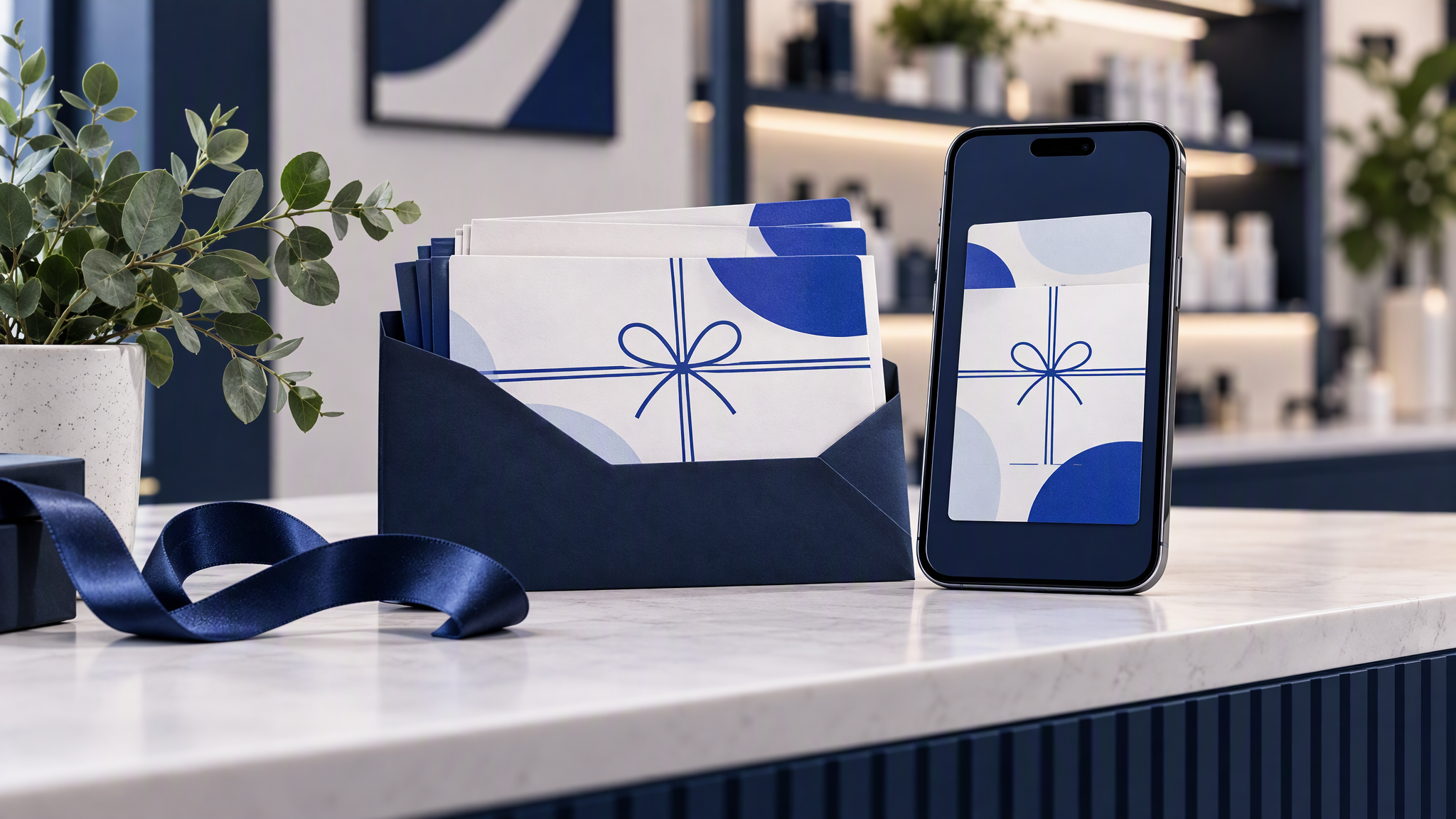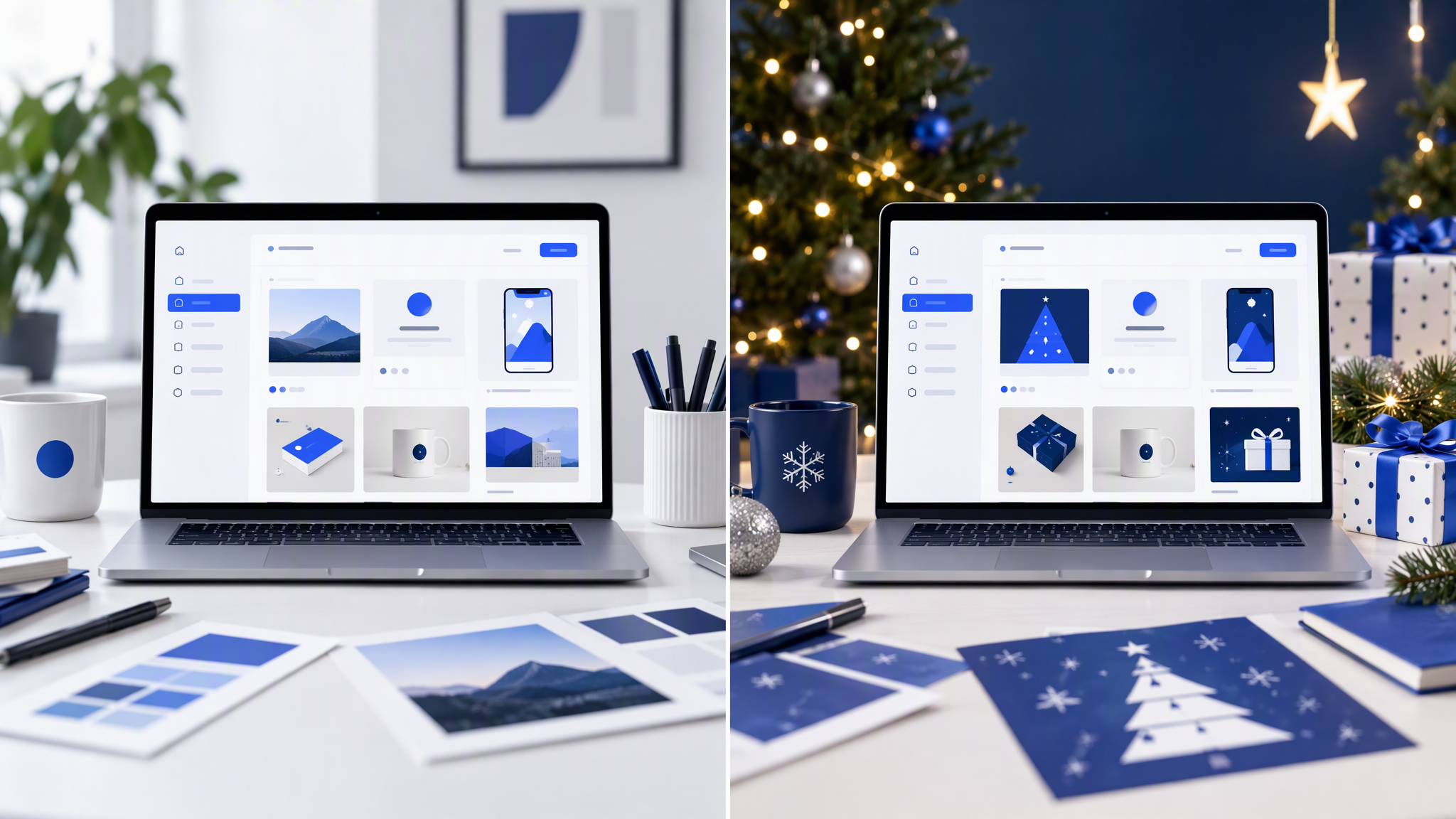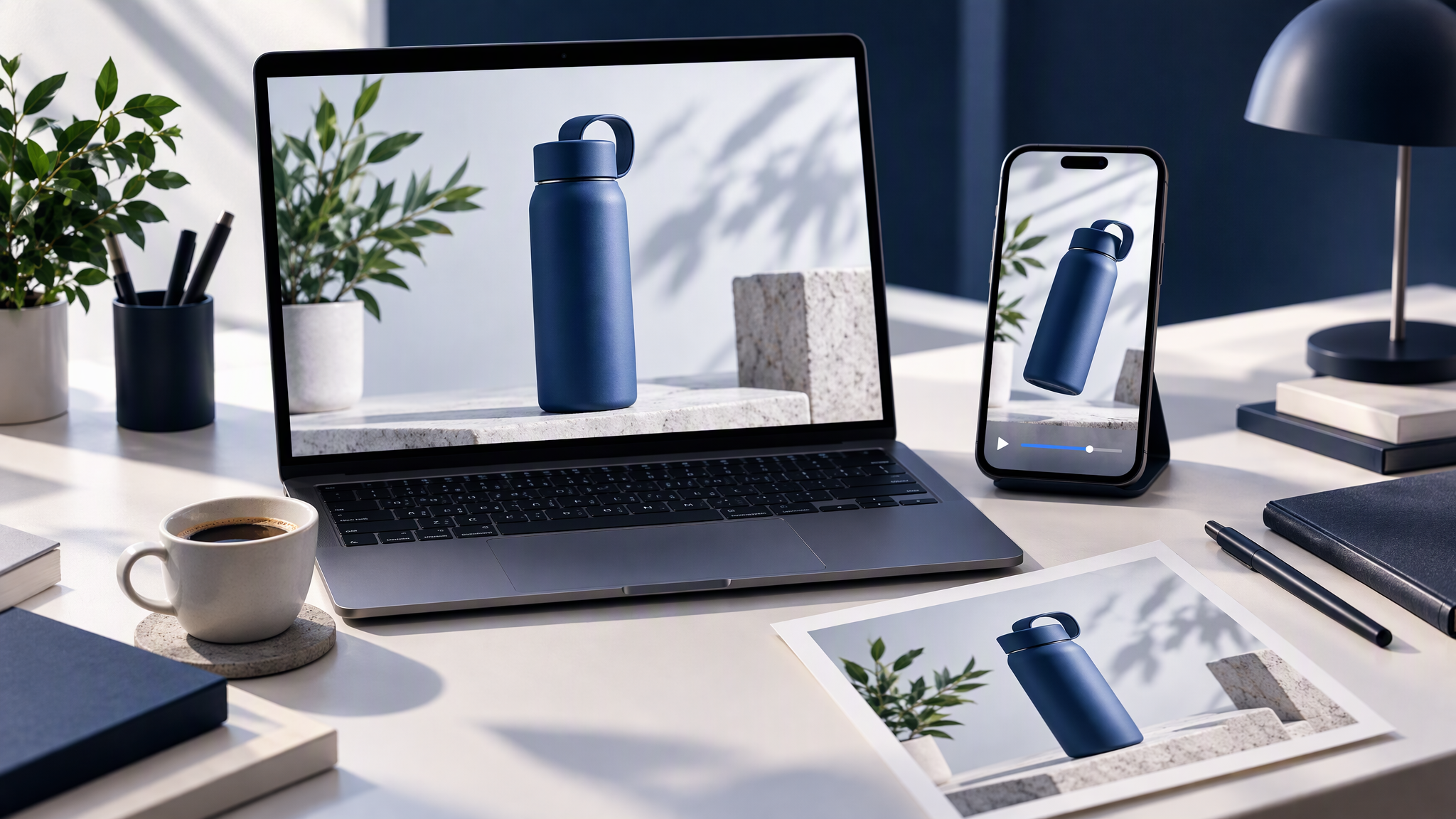
Gift season is close, and the feed already has a look: the product, the colours, the way you photograph the table. Then someone says you need Reels, a TikTok, a LinkedIn clip, and a short ad. Most small teams have the stills and no video budget. A separate video tool starts from a new style note, or from stock clips, and the feed splits into two businesses.
Here is the answer-ready line: The simplest way to make short social videos that match your brand is to start from an on-brand still image and animate it, rather than making video in a separate tool from scratch. The still already carries your product, colours and photo style, so a short clip made from it looks like the rest of your feed.
This is for an owner or a one-person marketing team planning gift-season social content, who has good stills, keeps hearing that video is required, and does not have an editor.
This is the first video piece on the blog. It is not another still-image guide. If the product photos themselves are the gap, start with How to Turn Your Shop's Products Into On-Brand Ad and Social Images, then come back and animate a still you would actually post.
Why video drifts from your brand
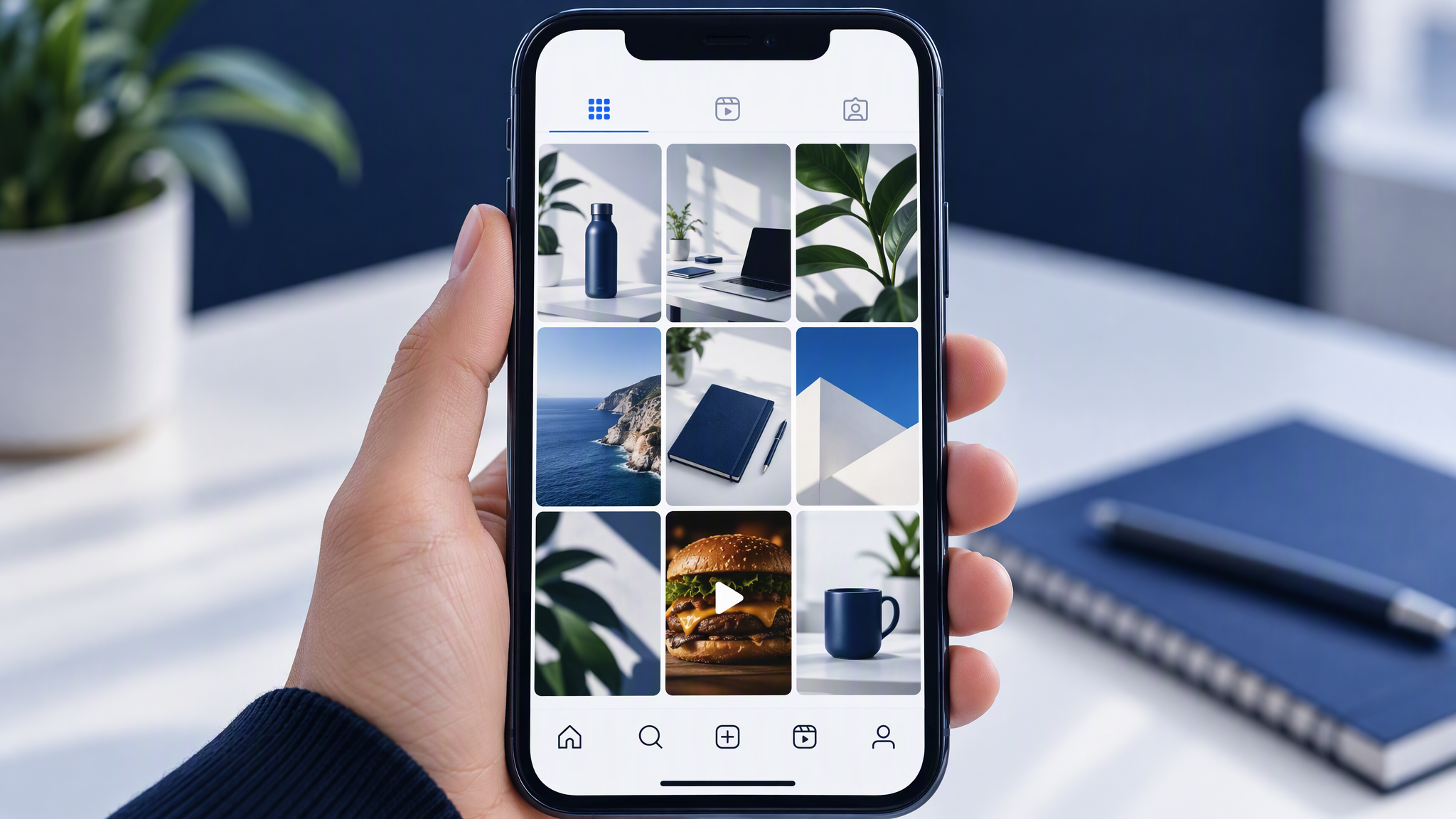
The stills took months to look like one shop. A clip can undo that in an afternoon.
A separate video tool starts cold. It has not seen the kit or the product photo you approved. It offers a style of its own.
A new style description drifts. "Warm, clean, still us, a bit of motion" is a different brief from the one that made the still. The video prompt invents a cousin.
Stock clips are someone else's shop. A generic unboxing, or a kitchen that is not yours. The caption can be accurate and the picture still belongs elsewhere.
One clip looks fine in the app that made it. Next to the grid, customers fail to recognise the business.
If LinkedIn and Instagram already struggle to match as stills, fix that before you add motion. The check is in How to Keep LinkedIn and Instagram Looking Like the Same Brand.
Start from an approved still
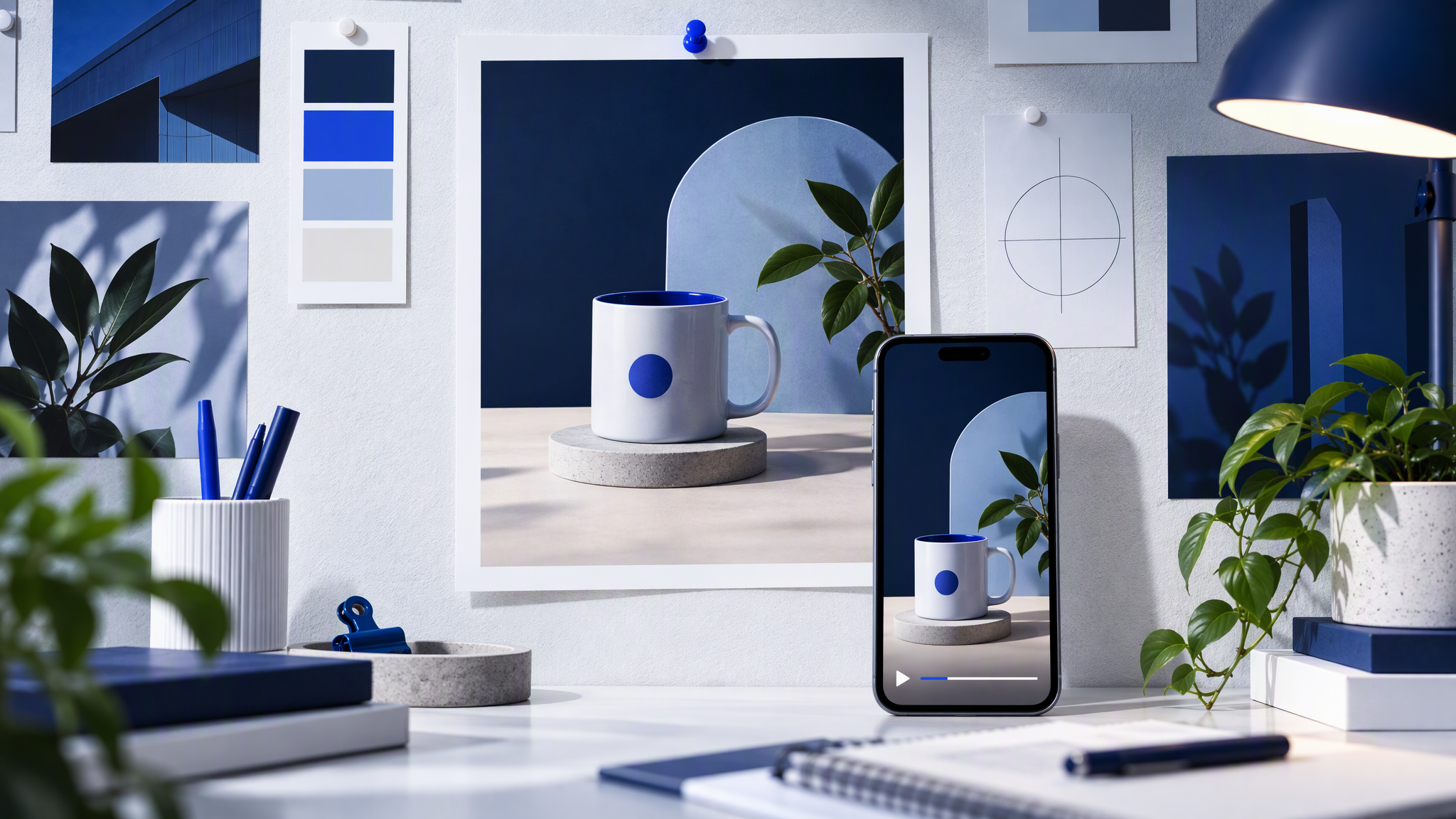
The image you would post is the right starting point, because the decisions are already in the frame.
The product is the real one. Packaging, colour, and shape match what you sell. Animating that frame keeps the item. Generating a clip from a sentence often changes it.
The colours are already yours. Background, product, and any small highlight were chosen when you approved the still. You do not pick them again.
The photo style is the one the feed knows. Daylight on the real pastry, a plain table, the usual crop. Motion should sit on top of that, not replace it.
Approve the still the way you approve a post: beside the last few images, not beside the prompt. If the still is wrong, a clip will be wrong faster. Get the still right, then animate it.
What short clips work from a still

You do not need a story. You need a small movement on the picture you already approved.
A slow push-in. The product stays put. The frame moves closer. Nothing new enters.
Steam, light, or a soft shift in the background. Useful for food, drink, a candle, a salon detail. The product does not change shape.
A simple reveal. A lid, a ribbon, or a hand already in the still, moving a little. If the reveal needs a new scene, you have left the still behind.
Keep it to about 5 to 10 seconds. That is a practical length for a Reel or a short ad, not a claim about any tool's limit. A second location, or a cast the still never had, will not inherit the look. It will invent one.
If the movement would embarrass you next to the original photo, do not post it. A still that already works beats a clip that looks like another shop.
Plan the format before you animate
Crop first. Animate second.
Pick vertical or square before you move anything. A 16:9 still cropped after the fact will cut off the product or leave a clumsy bar. Decide the placement, then frame the still for it.
Leave space for captions you will add in the app. Instagram, TikTok, and LinkedIn put words on top of the video. Keep a quiet area. Do not bake the caption into the picture.
Keep text off the image itself. Prices, dates, and headlines belong in the caption or in a type layer you control. Lettering generated inside the photo is hard to correct and easy to get wrong.
Why a fresh treatment per size causes drift is already in How to Resize One Campaign Asset for Every Channel Without Drift. Use that for the crops of the still. Then animate the crop you mean to post, not a master you will slice later and hope.
The wider social habit, one look across crops, is in How to Create On-Brand AI Social Content Across Every Channel. Video does not get a separate identity.
Where Brandiseer fits
Two paths, for two kinds of team. Neither one is a video studio.
Animate in Chat. If you are making the content yourself, make the still from your saved brand in the Chat workspace, approve it, then use Animate. The clip starts from that image, so the product, the colours, and the photo style are already decided. You still choose what to post.
The API, if your own product already calls Brandiseer. Developer API v2.1 adds an image-to-video step for that case. You start from a still your integration already returned, request video, and wait until it is ready. The note is Developer API v2.1 still image to video, shipped on 1 September 2026. In-app Animate stays the path for people working in Chat. The API path is for teams whose app or store already talks to Brandiseer. This post will not invent durations, prices, or limits the update does not state.
Teams that already generate social stills on a schedule can keep that habit for the images. Social media automation is the related walkthrough for on-brand stills and captions. It does not replace the check on the clip.
A quick check before you post
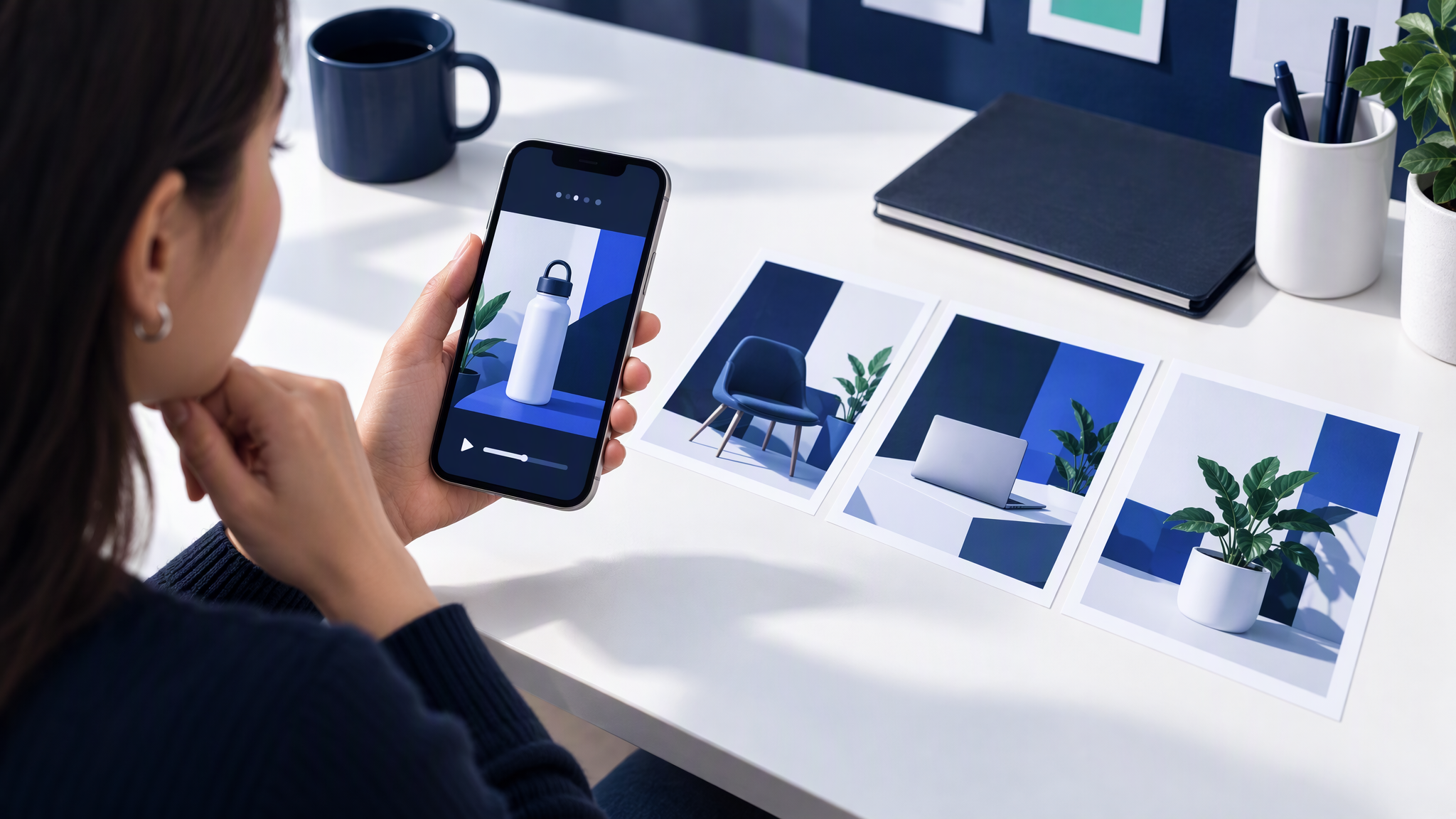
Play the clip next to your last three posts. Ask three questions. Is it the same product? Are the colours the ones in those posts? Does the photo style match, once you ignore the motion? If any answer is no, it looks like a different business. Go back to the still. Do not try to fix a wrong picture by adding more movement.
Pass the clip only if a stranger would file it with the grid. Then add the caption in the app, in the space you left.
More on this cluster lives under Social posts.
Where the clip should start
A shared folder can do this if you are strict: approved stills in one place, the crop chosen before you animate, and a play-next-to-the-grid check before anything is scheduled.
Brandiseer fits when the still comes from the saved logo, colours, fonts, and reference photos, and the short clip starts from that still rather than from a fresh style paragraph in another video tool. In Chat, you make the image and use Animate. If your own product already calls the API, the image-to-video step does the same job from a still that integration already returned. You still choose the crop, the motion, and what ships.
Use it when gift season means more short video than you can brief by hand. Stay manual when a handful of stills can be checked one by one.
FAQ
Do we need a video editor for a 5 to 10 second clip?
Not for this job. Simple motion on an approved still is enough for a Reel or a short ad. An editor does not fix a clip that started from the wrong look.
Is 5 to 10 seconds a Brandiseer limit?
No. It is a practical length for social: long enough to see the product move, short enough that you are not telling a story the still cannot hold. The product notes do not state a duration, a price, or a plan limit, and this post will not invent them.
What if our shop app already generates stills with Brandiseer?
Use the API image-to-video step on a still that integration already returned. Keep Animate in Chat for people making the clip themselves. The update linked above is the contract. Do not guess past it.
What if the clip looks better than the still?
The test is whether it looks like the rest of the feed. If the motion changes the product or the photo style, reject it and return to the still you approved.
Same still, same shop, now with motion
Short social videos drift when they are made from scratch in a tool that never saw your approved images. Start from a still that already has the product, the colours, and the photo style. Plan the crop, keep the motion simple, and play the result next to your last three posts before it goes live.