To keep product colours accurate in ecommerce photos, shoot every product under the same daylight light with a grey card in the first frame, lock the white balance and export in sRGB. Then check each photo against the real product before it goes live.
This is for the owner of a small online shop, clothing, homeware, cosmetics or food gifts, photographing new holiday stock in late October. The jumper that is forest green on the table can arrive looking teal, and the customer says the colour was not as pictured. The usual causes are ordinary: mixed light, a phone that keeps resetting white balance, a filter, and an export in the wrong colour profile. You can fix the shoot this week, before the rush.
How do brands keep product colours accurate in ecommerce photos?
They shoot every product under one steady light, set the white balance from a grey card and export in sRGB. If you shoot on a phone at home, use daylight from one window and lock the camera settings. If you sell on Amazon, sRGB and a neutral white balance are in Amazon's own style guide as of October 2026. If you use AI for lifestyle scenes, keep the real photo as your colour reference and check every generated image against the product.
Why product colours shift between the shop and the screen
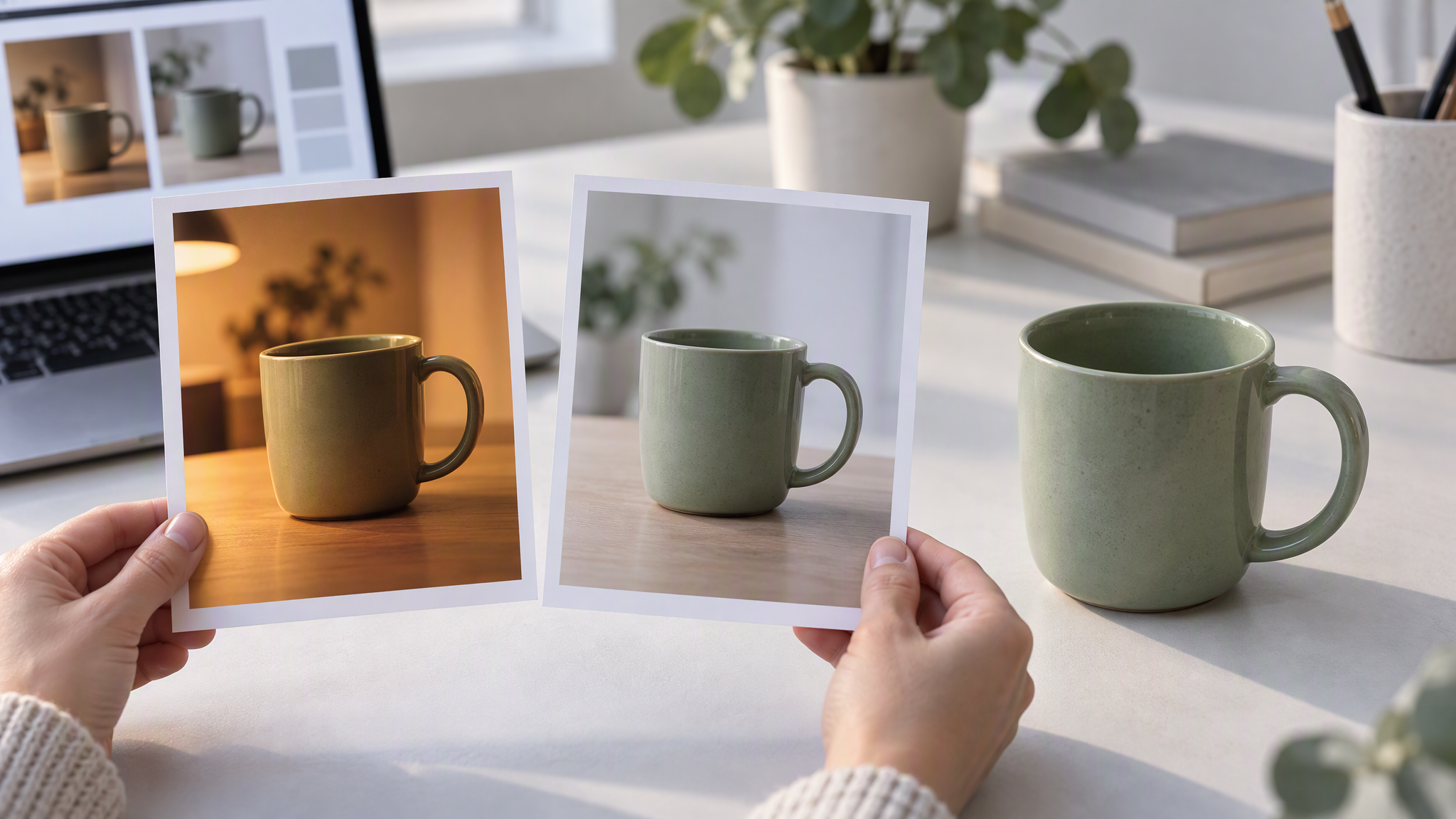
The product did not change colour between the table and the doorstep. The file did.
Mixed light. A window and a warm kitchen lamp paint the same jumper two colours. Forest green slides towards teal or brown, depending on which light wins.
Auto white balance. A phone keeps guessing. It may cool a green jumper, then guess again on the next product. The grid stops agreeing with itself.
Phone filters and editing apps. A portrait look, an automatic enhance, or a warmth slider is a new grade. Leave those off for product photos.
The wrong colour profile on export. A file can look right in the app and wrong on the website. sRGB is the profile online shops expect. A wider profile that looks richer on your laptop changes once it is uploaded.
The customer compares the photo with the parcel in daylight. If those two disagree, reshoot the photo.
A simple setup for accurate colour
Set the shoot up once, then leave it alone for the whole batch. This is ordinary photo practice, written here as advice, not as a rule quoted from a marketplace.
One light source. Daylight from a single window is enough. Turn the warm ceiling lamp off. If you must shoot after dark, use one lamp for every product. Do not mix the lamp with the window.
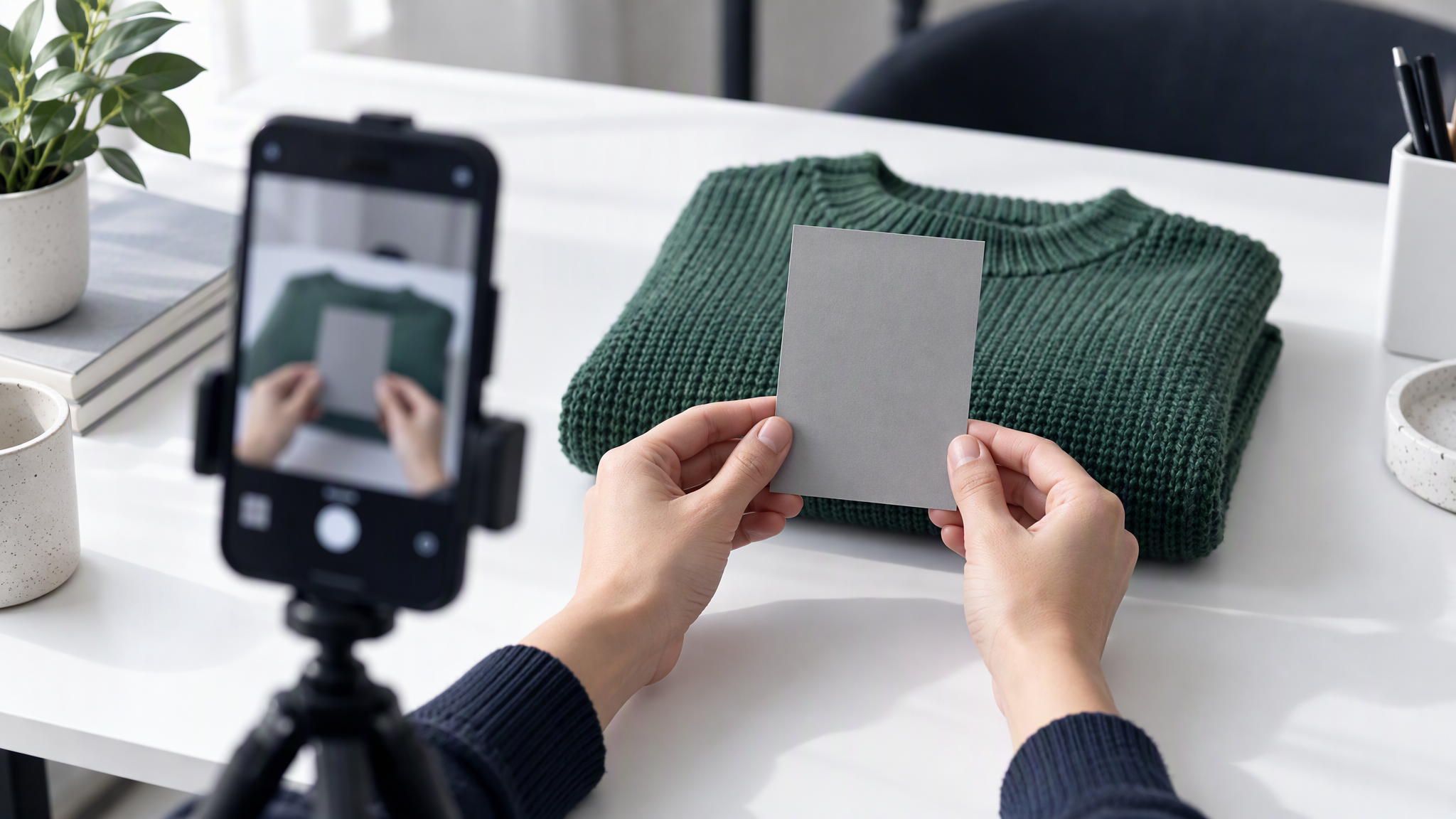
A grey card in the first frame. A grey card is a plain mid-grey card. Photograph it in the same light before the products, and set white balance from that grey so the camera is not guessing from the jumper.
White balance locked. After that frame, lock the setting. Do not let the phone return to auto on the next product. If you change rooms, or the sun moves hard, shoot the grey card again and lock it again.
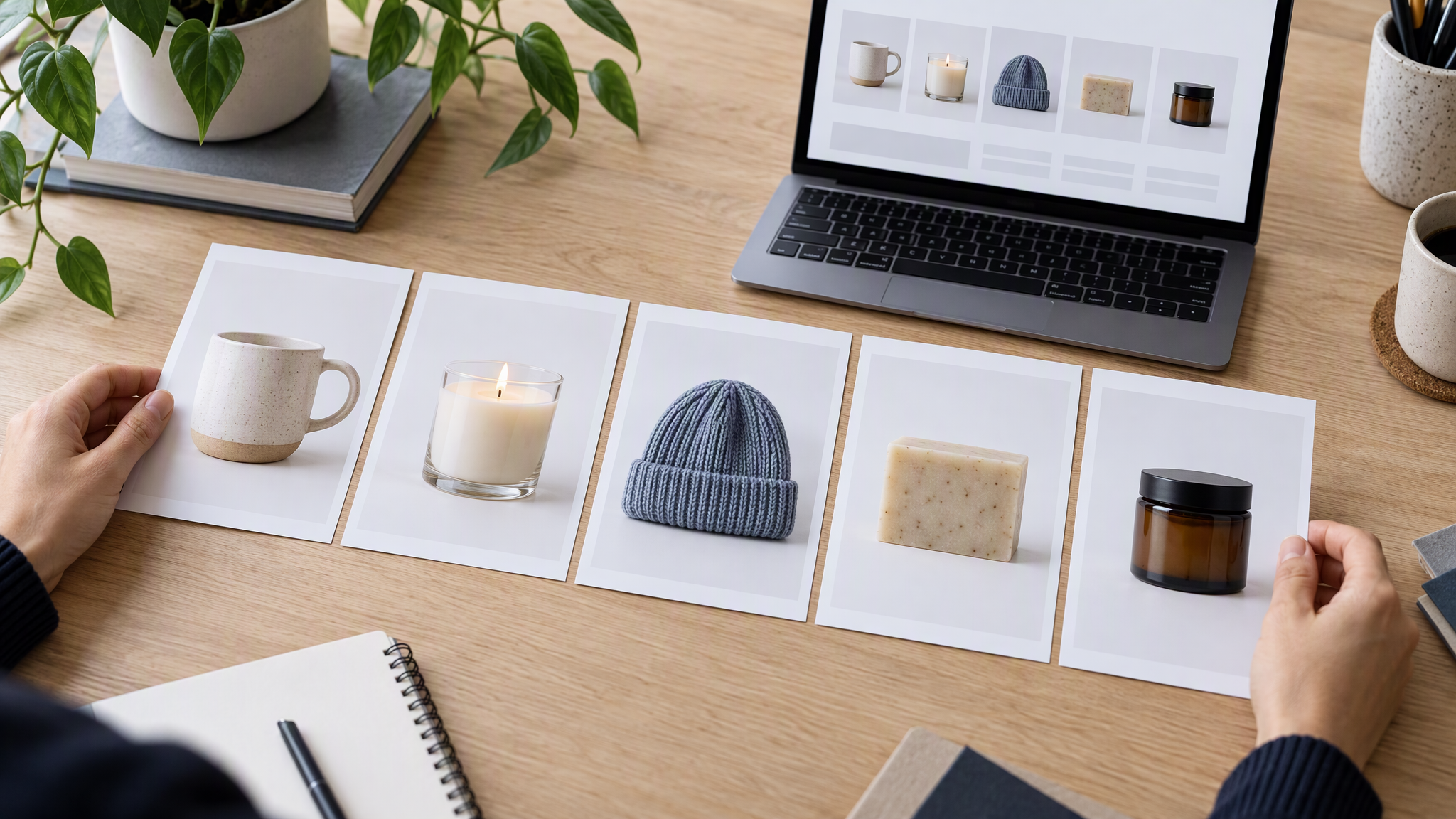
The same settings for the whole batch. Same window, same distance, same background. A batch shot in one sitting agrees with itself.
No filters. No portrait mode, no automatic enhance, no preset. If a photo is dark, add light and shoot it again. Do not paint the colour back with a slider.
Shoot the new holiday stock as one batch under that setup, including a gift set or a new colourway. Forest green should still sit next to last month's navy.
Export and marketplace settings
Export every shop photo as a JPEG in sRGB. Check the colour profile before you upload. A file that only looks right inside the editing app is not finished.
If you sell on Amazon, two sources are worth keeping apart, both as of October 2026.
Amazon's Selling on Amazon Home Selection Style Guide is a PDF for that Home selection, not a rule this post will stretch to every Amazon category. As of October 2026, it says:
- The colour profile must be sRGB, and Amazon marks that as mandatory for all images in the guide.
- "Color must accurately represent product with a neutral white balance overall."
- The background is pure white, given as 255 RGB.
- The product fills at least 85% of the frame.
- JPEG is preferred.
- The guide also gives a 2,000 px minimum. That minimum belongs to this Home style guide. Do not treat it as an Amazon-wide rule.
Separately, as of October 2026, Amazon support writing in Seller Forums has described main image requirements this way. These lines are not the Home style guide:
- A pure white background of RGB 255, 255, 255.
- The product fills at least 85% of the frame.
- Images over 1,000 px on the longest side enable zoom.
This post does not invent rules for other marketplaces. If you sell somewhere else, read that site's own image page and keep sRGB unless that page tells you otherwise. The Home guide's 2,000 px line stays inside the Home guide.
A five-minute check before every upload
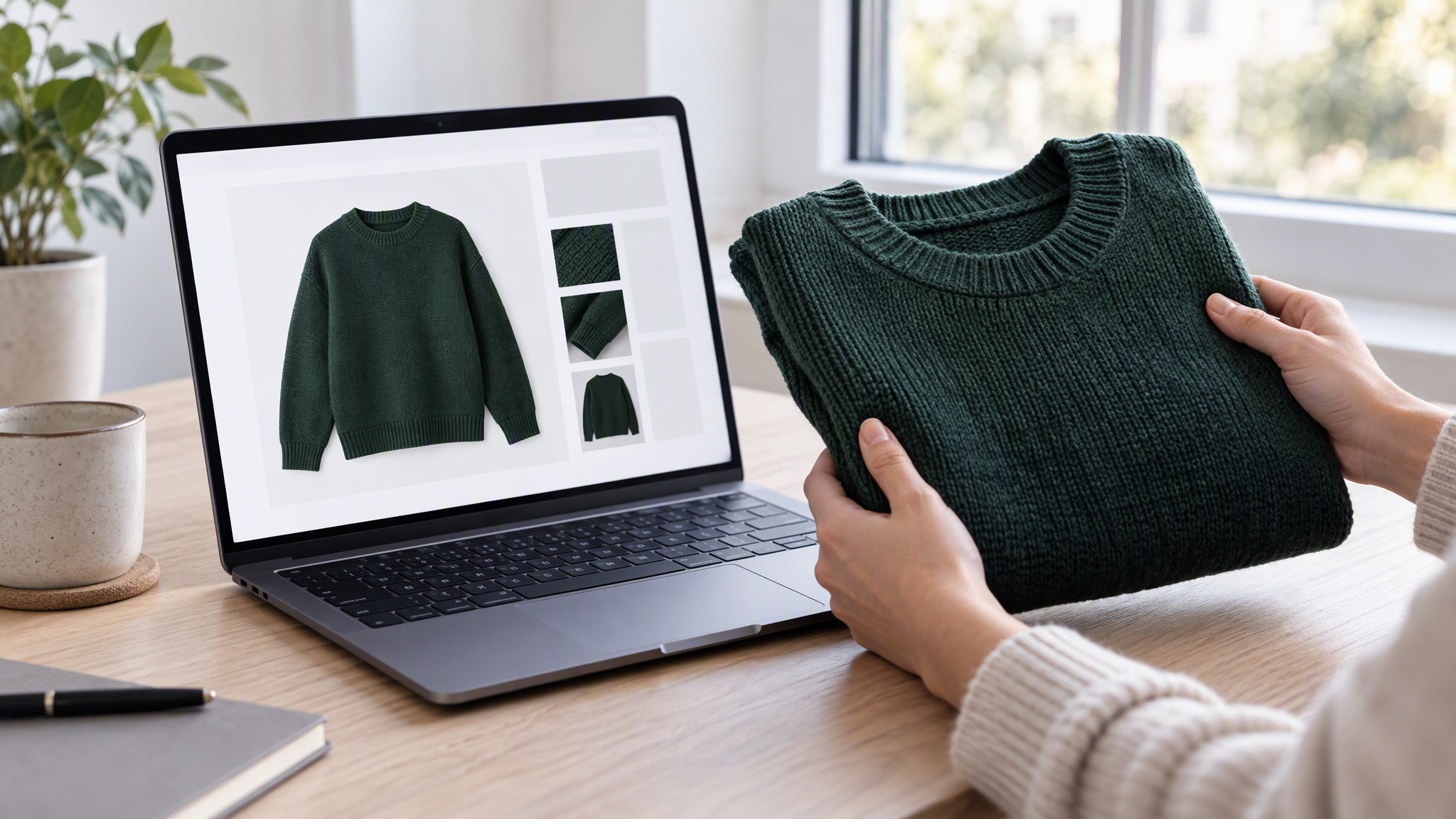
Before a photo goes on the product page, put the real product next to the screen in daylight.
The main colour. If you would use a different colour name for the screen than for the item in your hand, reshoot. Do not drag a slider until it looks close.
Any second colour. A stripe, a lid, a ribbon, a second fabric. Mixed light shows up there after the main colour has been nudged.
The label. The label colour should match the pack in your hand. A label that has changed colour has usually been graded, not photographed.
If it fails, shoot it again under the locked setup. Sliding colours by eye is how the next product drifts a different way.
Where AI fits, and where it does not
Use AI for lifestyle scenes on social posts and ads, and only after the real photo is right. The real photo is the colour reference. A generated scene has to be checked against the product in your hand, the same way the catalogue photo is. If the generated jumper is teal and the real one is forest green, reject the scene.
Do not use AI to "fix" the colour of the main product image. The picture on the product page should be the photograph you took, exported in sRGB. A generated correction of that file is a new product, even when it looks cleaner.
Keeping a whole catalogue consistent, including crop and light, is in How E-Commerce Brands Keep Product Photos Consistent Without a Studio. When the photos come from several suppliers rather than one shoot, how to keep product photos consistent across suppliers is the standard for ratio, background and file size. Christmas gift sets that still match the everyday catalogue are in How Local Shops Shoot Christmas Gift-Set Photos That Still Match the Catalogue. Turning products you already sell into ads and posts is in How to Turn Your Shop's Products Into On-Brand Ad and Social Images. When a real frame should stay the source of truth, and when a generated scene is a fair extra, is in AI Product Photography: Real Photos vs Generative Images. The listing on Google is a different photo job, in Google Business Profile Photos That Match Your Brand.
More on this cluster lives under Product photos.
The main product image stays a photograph. If you want the social scenes beside it to start from the same saved references, Brandiseer can hold those photos with the logo and colours. It is optional. The grey card, the locked white balance and the check against the real product are the point.
Same colour on the table and on the page
Shoot under one daylight light, start with a grey card, lock the white balance and export a JPEG in sRGB. Check the real product against the screen before you upload. If you sell in Amazon's Home selection, follow that guide's sRGB and neutral white balance rules, as of October 2026, and leave its 2,000 px line inside that guide. Use AI for scenes around a correct photo. Leave the main image as the photograph.