Print-ready AI flyers are the file a café, a salon or a local shop is trying to email this week. Mid-October is when holiday flyers, window posters and shelf cards go to the print shop, ahead of the Christmas rush. The approved picture often still sits inside a framed mockup, so the file that arrives has a border, a soft edge, or the wrong footprint. The printer cannot guess which part you meant to keep.
Here is the answer-ready line: Print-ready AI flyers are full-bleed files at the final print size with no mockup frame, matching the approved still. In Brandiseer, Ready Format (20 August 2026) aims at printable full-bleed output instead of framed previews, and Library PDF export (21 August 2026) turns stills into PDFs at the same dimensions you generated; video and SVG are not included in that export.
This is for an owner, or the one person who does the marketing, who already has an approved AI still and needs a full-bleed flyer or poster PDF before the rush.
Matching the look of a menu or flyer to the Instagram grid is a different job, in How Cafés and Local Shops Keep Printed Menus, Flyers, and Instagram Looking Like One Business. The voucher card is a different job again, in How Small Shops and Salons Make Gift Vouchers That Look Like Their Brand. This post is the handoff: from a still you have already approved to a file the printer can use.
Why print-ready AI flyers often fail at the printer

The picture looked finished on the screen. The sheet does not.
The artwork is still in a frame. A mockup draws a border, a shadow, or a page edge around the design so it looks like a poster on a wall. That frame is part of the preview. It is not part of the poster. If you send the preview, the print shop prints the frame too, or has to crop it off and hope.
The picture stops short of the edge. Print trims the sheet. If the colour, the photo or the background ends inside the trim, you get a thin unwanted border, or the trim cuts into the logo. Full bleed means the design runs to the edge of the finished sheet, so the trim has something to cut. You judge that on the file you will send, not on a picture of a frame.
The footprint is wrong. The still was made for a phone, then dropped onto a flyer size without a new decision. The product is cropped, the quiet space has moved, or the poster is a different proportion from the file you approved. The printer will print the file you attach. They will not rebuild the crop.
None of that is a new design. It is the same approved still, finished as a sheet instead of as a preview. Do that before you write the email.
What does print-ready actually mean?
The file is the final size, full bleed where the job needs it, with no mockup frame, and the logo, colours and photo style match the approved still.
Final size. The PDF is the footprint you generated for that piece. A preview scaled to fit a window is not the size. A shelf card and a window poster are two files if the proportions differ, not one file stretched.
Full bleed where the sheet is trimmed. The background and the photo run to the edge. A white line, a fade, or a drop shadow that only made the mockup look like paper does not belong. A border you chose, in your colours, is a different thing from the frame the preview added.
No mockup furniture. No wall, no table, no frame, no phone around the artwork. The printer needs the artwork.
The same still you approved. Logo, colours and photo style stay as they were when you said yes. A handoff that restyles the picture has started a new design.
If any of those four is missing, it is not ready.
Finish the visual for production, not for a preview
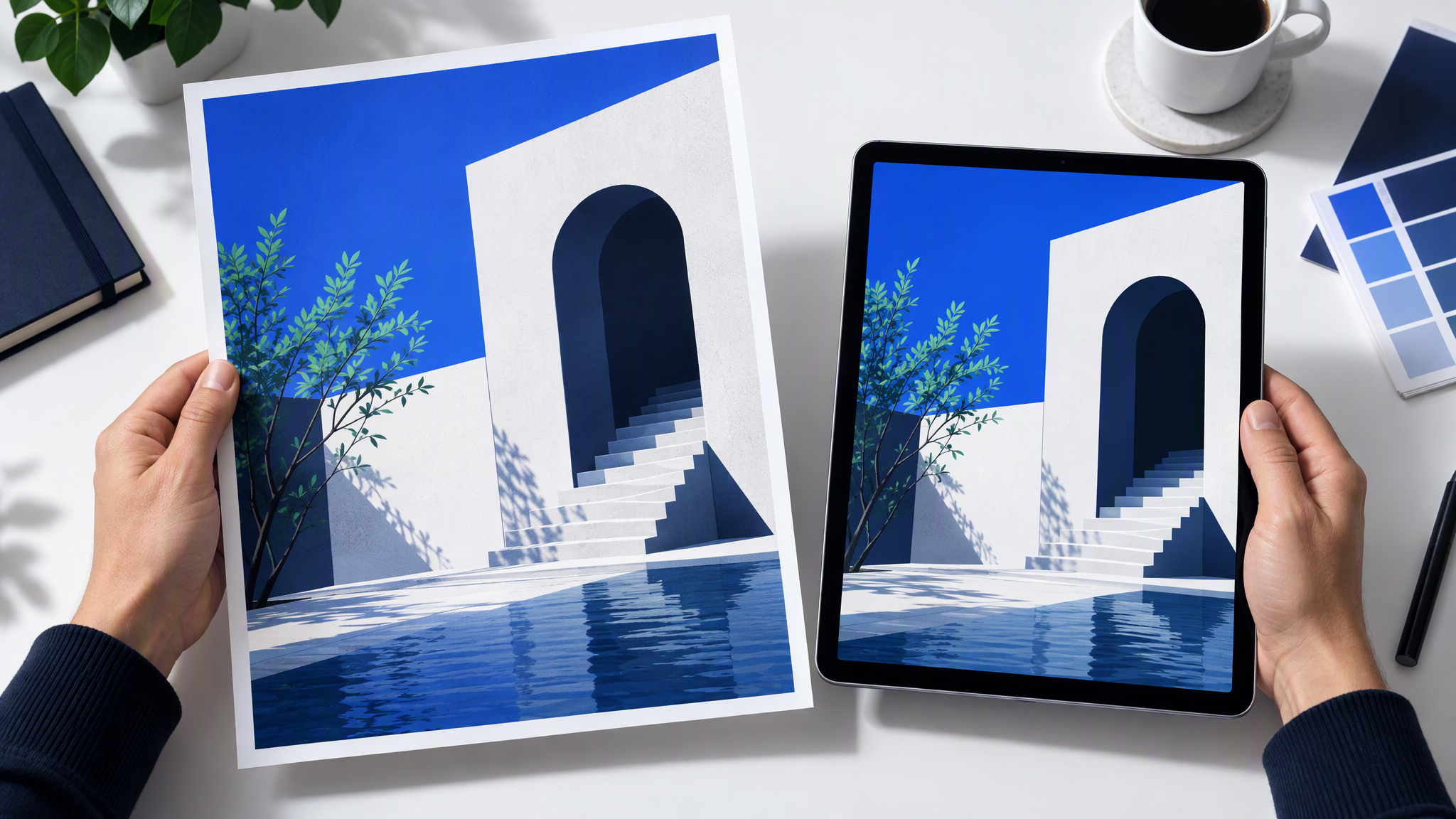
In Brandiseer, that finish is Ready Format. The note Ready Format for printable, full-bleed output, shipped on 20 August 2026, is the limit of what this post will claim about it.
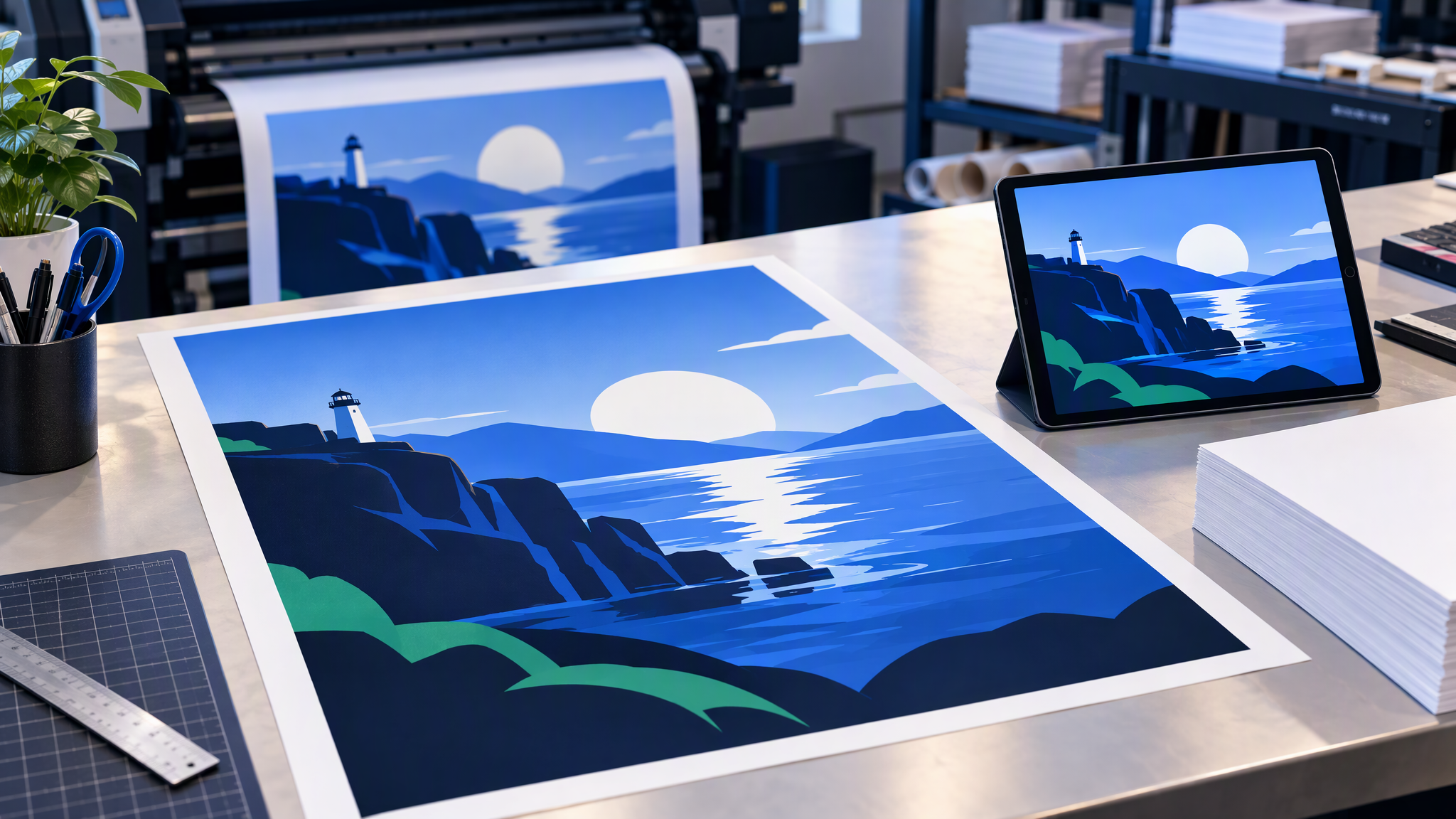
Ready Format aims at printable full-bleed output instead of a picture-frame preview. It is for formats you actually send to print or production. You take a generation you like, run Ready Format for a print size you need, and judge the bleed on the result. The mockup frame is not the destination. This post does not name paper sizes, bleed measurements, prices or printer brands, because that note does not.
When you change the image or the mode, Ready Format clears. The framing from the last pass should not linger on the next one. If a border from the previous try is still there, you are not looking at a clean result. Run it again on the still you actually approved.
Judge the bleed on the sheet you are about to keep, not on a thumbnail. Look at the edges. The colour or the photo should meet the edge of the file. The logo should still sit where it sat on the approved still, not clipped and not newly framed. If the result looks like a poster hanging on a wall, you are still in a preview.
Export a PDF at the same footprint
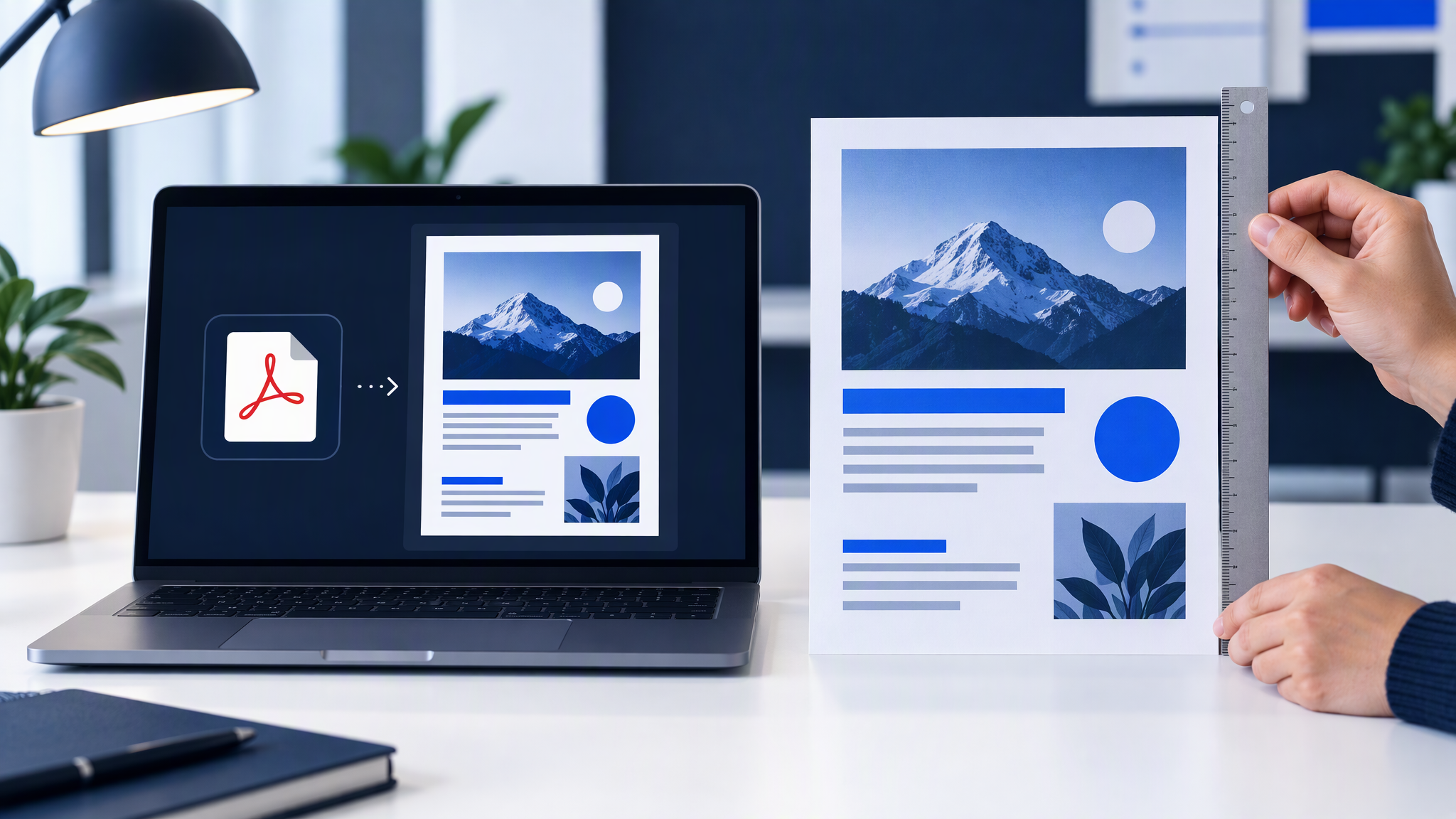
The still then has to leave as a PDF the print shop can open, at the size you generated. In Brandiseer, that step is Library PDF export. The note Library PDF export for print-ready assets, shipped on 21 August 2026, is the limit of what this post will claim about it.
Library PDF export turns stills into PDFs that keep the same dimensions you generated. You do not bounce through another tool just to get a PDF at that footprint. It is available from All Visuals, Favorites, Campaigns, API Generated, and preview. Grab the still, export the PDF, and check that the size matches what you generated. If the still looks right on screen, the PDF should carry that same footprint out.
One limit, stated in the note: video and SVG are not included in PDF export. Stills in Library are the path. If the piece you approved is a video or an SVG, this export is not the handoff. Make the decision on a still, then export that still.
The export keeps the footprint you already generated. It does not invent a new crop, and it does not schedule the print. If the flyer and the window poster are different proportions, generate each one, run Ready Format on each, and export each PDF.
A later resize for Instagram or a story is a different step. How a fresh treatment for each size pulls a campaign apart is in How to Resize One Campaign Asset for Every Channel Without Drift. Use that when you are cropping one approved picture for other channels. Use the PDF export when the printer needs the print file.
A 5-minute check before you email the printer
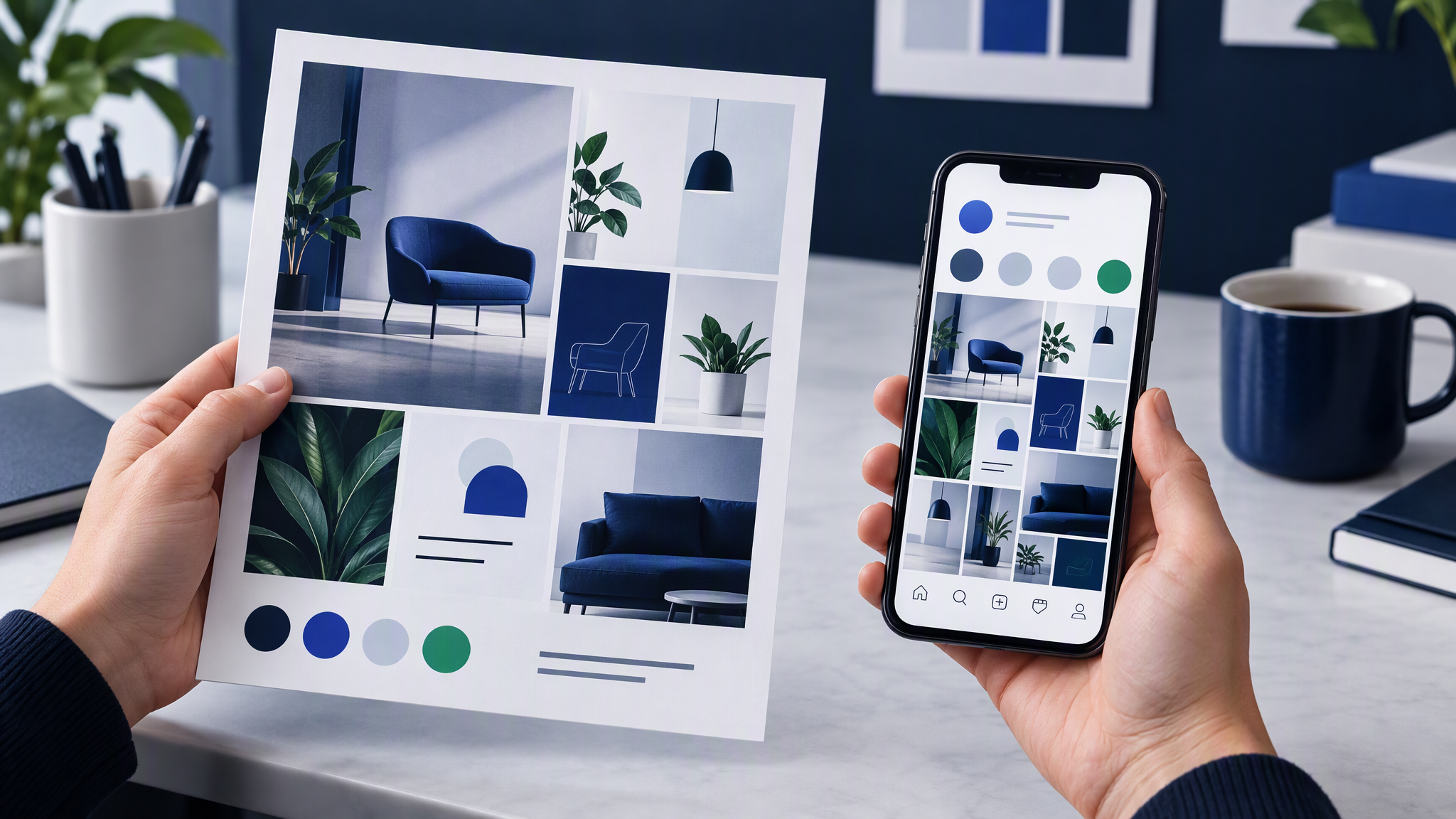
Hold the PDF next to two things you already trust: the approved still on screen, and your Instagram grid on your phone. Five minutes is enough. You are looking for three failures.
A new frame. Any border, shadow, wall or device that was not in the still you approved. If you can see the artwork sitting inside a picture of paper, you exported the preview.
A soft border. A fade, a white line, or a glow at the edge that the trim will either print or cut through. The edge of a full-bleed file should be the design, meeting the edge.
A wrong crop. The product, the logo or the quiet space sits in a different place from the approved still. The poster should be that still, finished for print, not a cousin that happened to use the same colours.
If it fails, go back to the still you approved. Remake the Ready Format pass, export again, and look at the edges once more. Then attach that PDF. Prices and dates can live in the email to the printer, or on the artwork if you already approved them there. Do not add them in a tool that restyles the file on the way out.
Where this sits next to menus and vouchers
The menus and flyers guide is the design brief: one look for the printed piece and the grid. The gift voucher guide is the card someone unwraps. Neither replaces the handoff. You can match the brand and still email a framed preview.
Do the look first, using those guides if the piece is not designed yet. Then do this: Ready Format for the full-bleed still, Library PDF export at the same dimensions, video and SVG left out, and the five-minute check against the approved still and the grid.
If you are also making the month of posts that point at the same offer, plan them in one sitting with How to Batch a Month of On-Brand Social Posts in One Afternoon. The printer still gets the PDF, not the Instagram crop.
More on this cluster lives under Social posts.
Send the sheet, not the preview
A holiday flyer is ready when the PDF is the final size, the design runs to the edge, the mockup frame is gone, and the logo, colours and photo style still match the still you approved. In Brandiseer that is Ready Format on the still, then a PDF from Library at the same dimensions, with video and SVG left out of the export. You still look at the edges before you email the printer.