To keep multiple brands in one AI tool separate, give each brand its own kit, pick the brand before every generation, and never share reference photos between brands. In Brandiseer you choose the brand on the Dashboard before Generate, and Deep Brand Understanding is switched on per brand.
This is for a freelance designer, a small agency, or an owner who runs two or three businesses and generates the pictures for each. November and December are when a mix-up costs the most: the bakery's warm photo style turns up in the bike shop's ad, or one client's colours land in another client's post. The cause is usually ordinary. The folders, the last settings and the copied prompt were shared.
Which AI image tools keep separate brand kits for multiple brands?
Pick a tool that saves one kit per brand and asks you to choose the brand before you generate. Freelancers and small agencies with several clients need that most; as of October 2026, Magnific One's Brand Kit supports separate kits for different brands, according to VentureBeat, and Brandiseer saves each brand with its own Brand Intelligence and a brand picker on the Dashboard. If you run two businesses, the same rule applies. If you only have one brand, you can skip the setup below and keep one master kit.
The Magnific line is Carl Franzen's, in VentureBeat on 8 October 2026. As of October 2026, he writes that an agency working with multiple customers can maintain separate kits for different brands. This post adds no price or kit limit beyond that.
How those kit tools differ, when you are choosing one, is in Brand Kit Tools Compared for Small Teams. Keeping a single brand looking the same in every app is a different job, in How to Keep One Brand Look Across Every AI Tool Your Team Uses. This post is the other split: several brands inside one tool, held apart.
Why brands mix in AI image tools
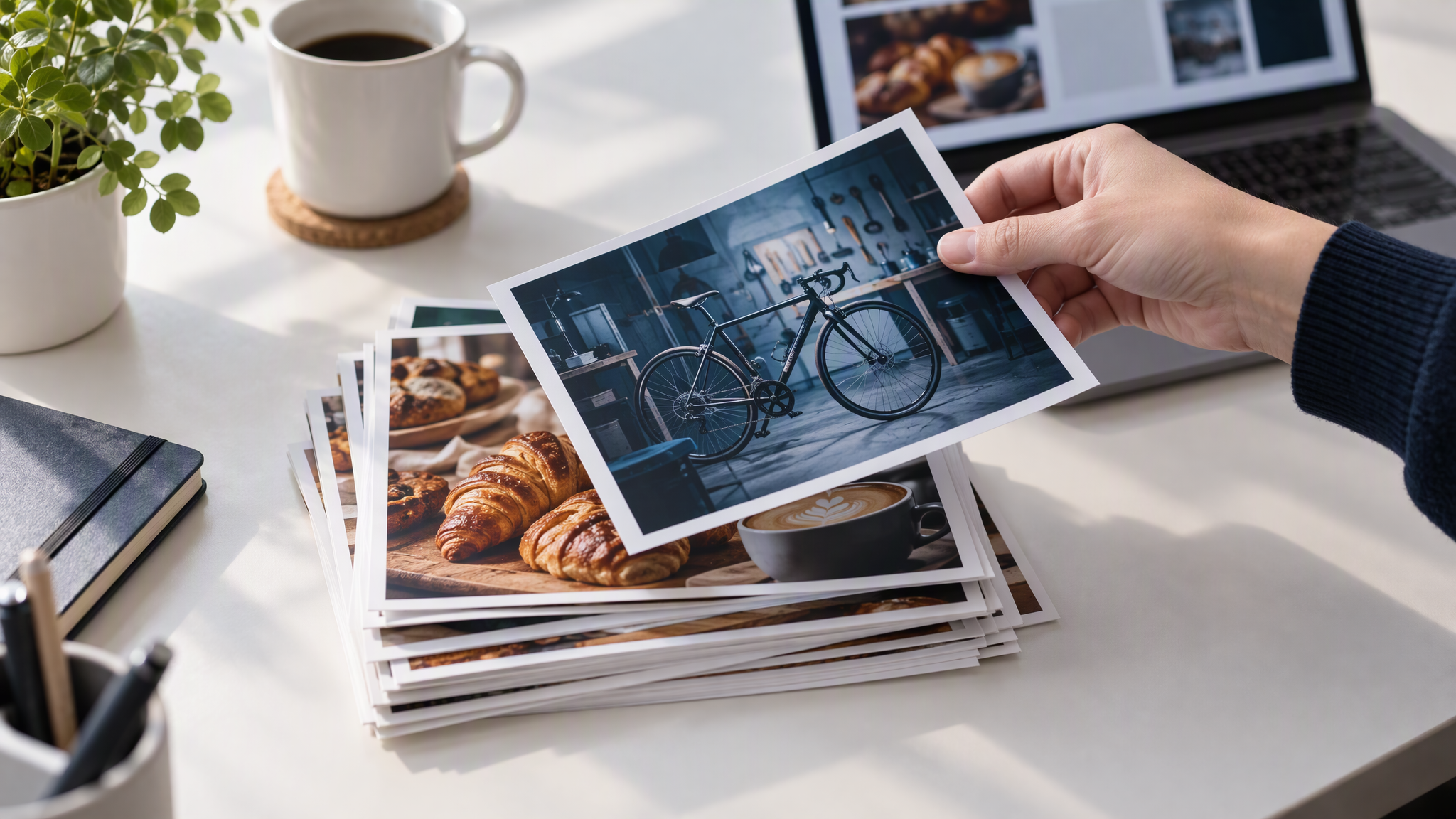
Brands mix because the tool, and the person using it, reuse whatever was nearest.
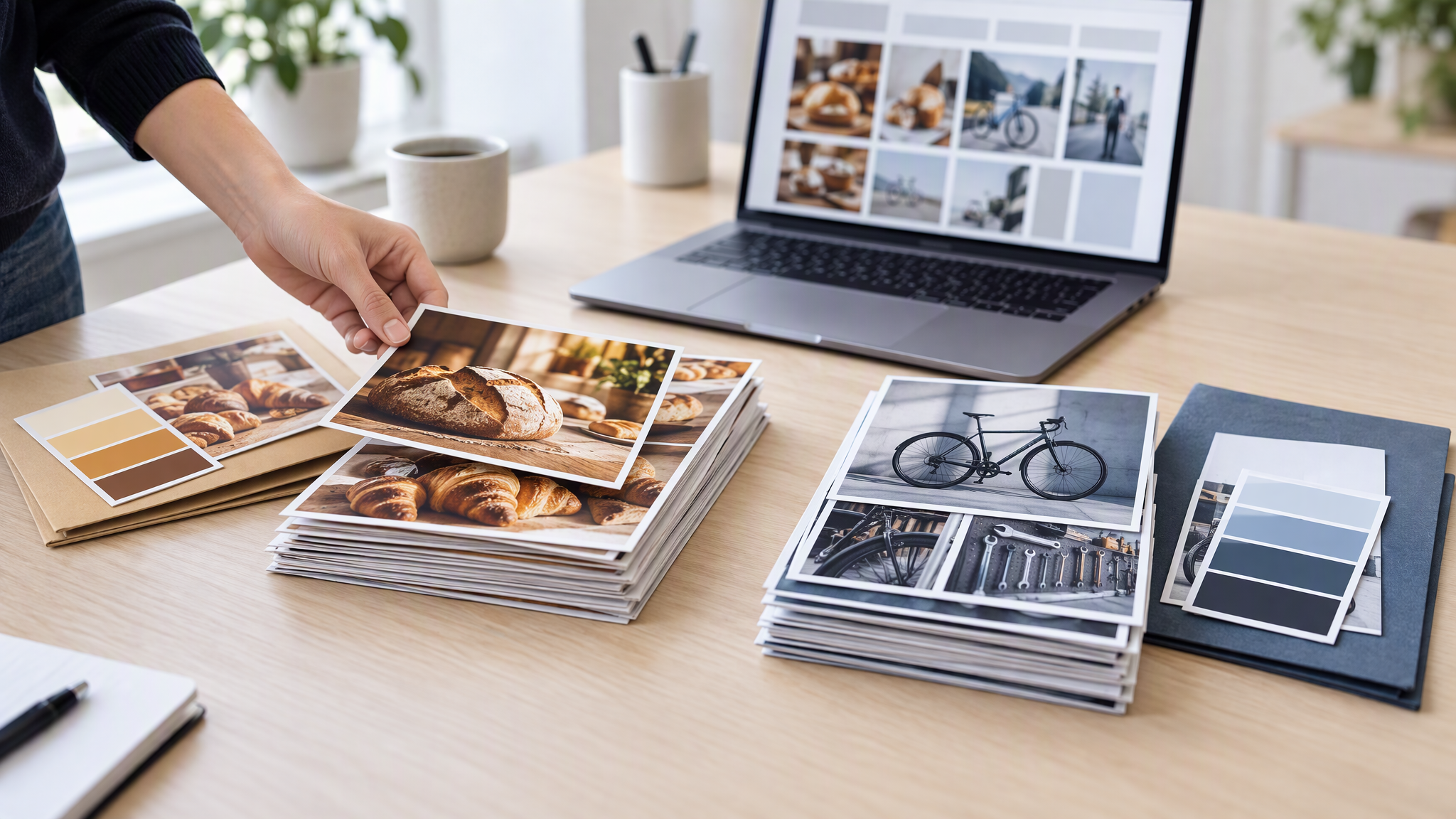
A shared reference folder. Bakery photos and bike-shop photos in one folder get grabbed together. A warm counter and a workshop bench then appear in the same post. The colours may be right. The place is not.
Last-used settings. You finish the bakery and open the laptop for the bike shop. The aspect ratio, the brand and the last prompt are still the bakery's, unless the tool makes you choose again.
A prompt copied from another client. The sentence that worked for one shop gets pasted into the next, with the name swapped. The lighting, the props and the "never" rules travel with it.
One long chat for everything. A thread that starts with one client and continues with another has no clean edge. The earlier pictures stay in view, and so does the prompt you scroll up to reuse.
The fix is ordinary: one kit per brand, named so you cannot grab the wrong one, and a check before you generate.
Set up one kit per brand
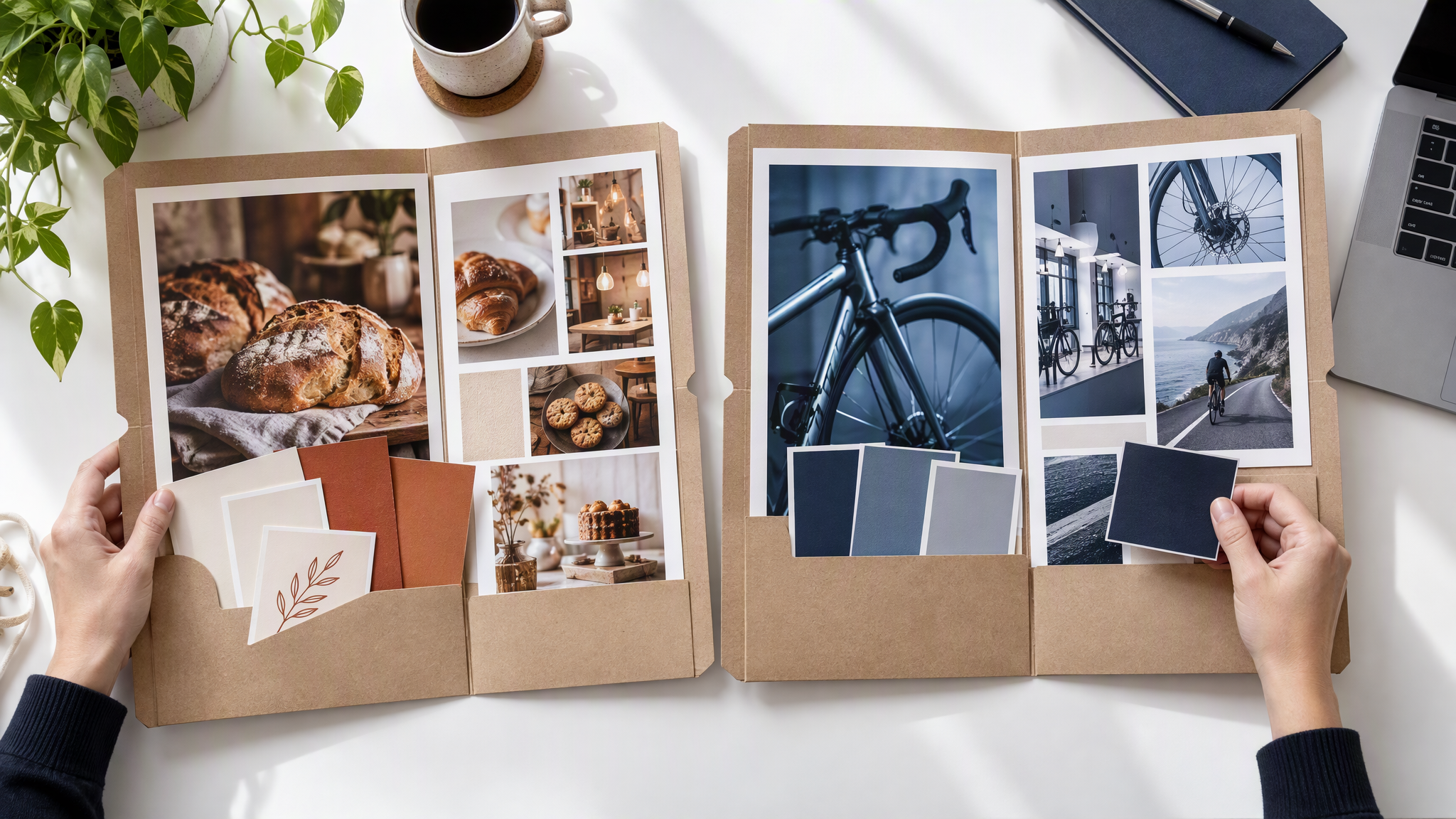
Build a separate kit for each brand. Do not keep a master folder of "all our clients" and hope the prompt will sort it out.
Logo files, with a placement rule. The file from that brand's website, and one line for where the mark sits. The other brand's mark does not go in as a spare.
3 to 5 colours, each with a job. Background, text, the product colour, and one small highlight, from that brand's site. A highlight borrowed from another client is how the palettes merge.
Two fonts. The headline and the body that brand already uses.
4 to 6 of that brand's own photos. The homepage, a product, a post you would still publish for that business. Leave the other brand's photos out. The next batch repeats what you show it.
Three "never" rules. Whatever that brand actually refuses. "Keep it premium" gives a tool nothing to reject.
Name every kit and every folder in the same pattern: Client / Brand / Year. "Bakery / Brand / 2026" and "Bike shop / Brand / 2026" can sit next to each other and still be obvious. "Final", "New" and "Use this one" cannot. When a colour changes, change that brand's folder only, then copy the change into that brand's kit in the tool.
The longer packing list, for a single brand, is in What to Put in Your Brand Kit Before You Use AI. Do that once per brand. A shared packing list with mixed photos is not a kit.
How to switch brands in Brandiseer without mix-ups
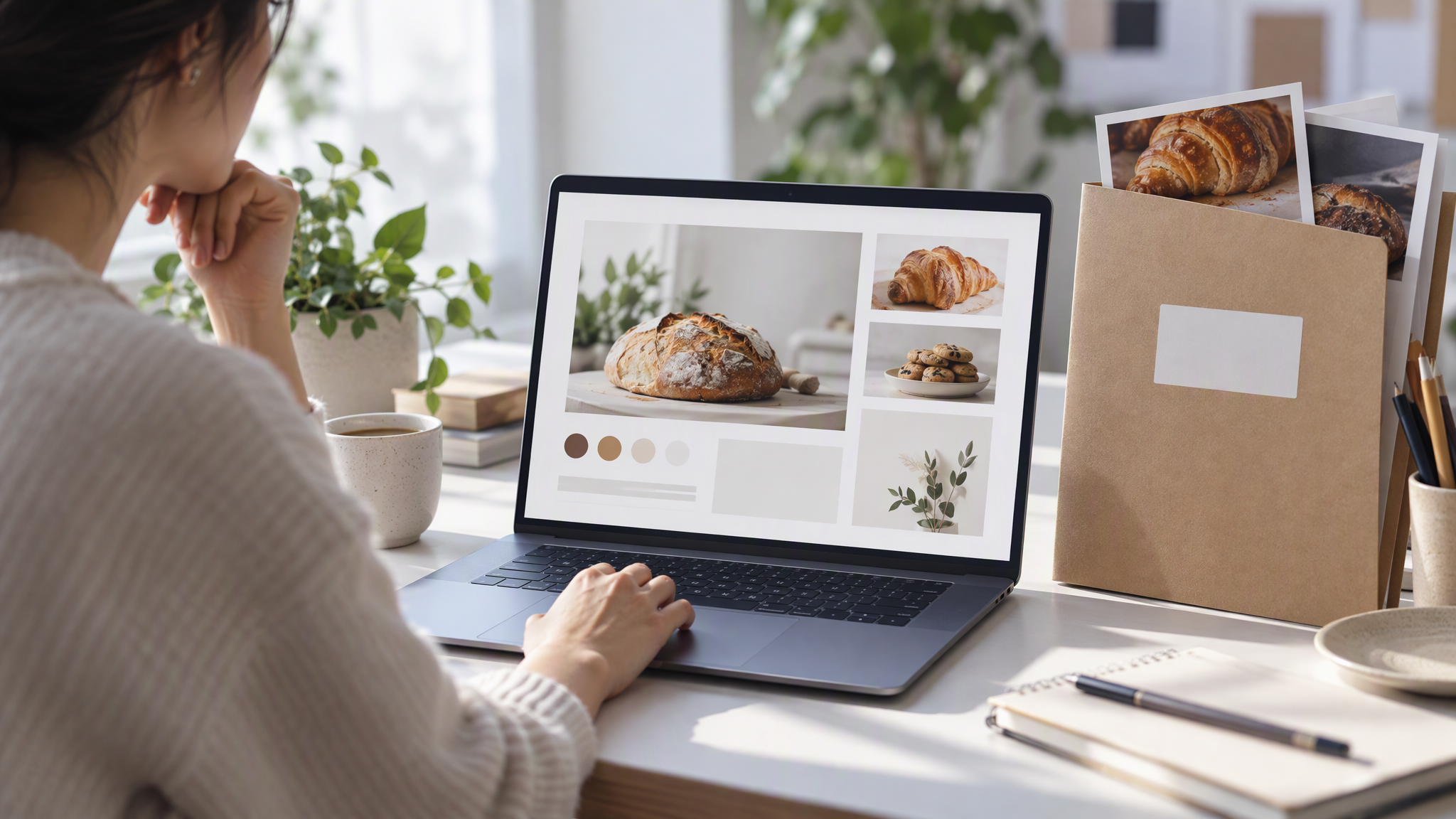
In Brandiseer, the switch is a choice you make before the picture, not a correction you make after it.
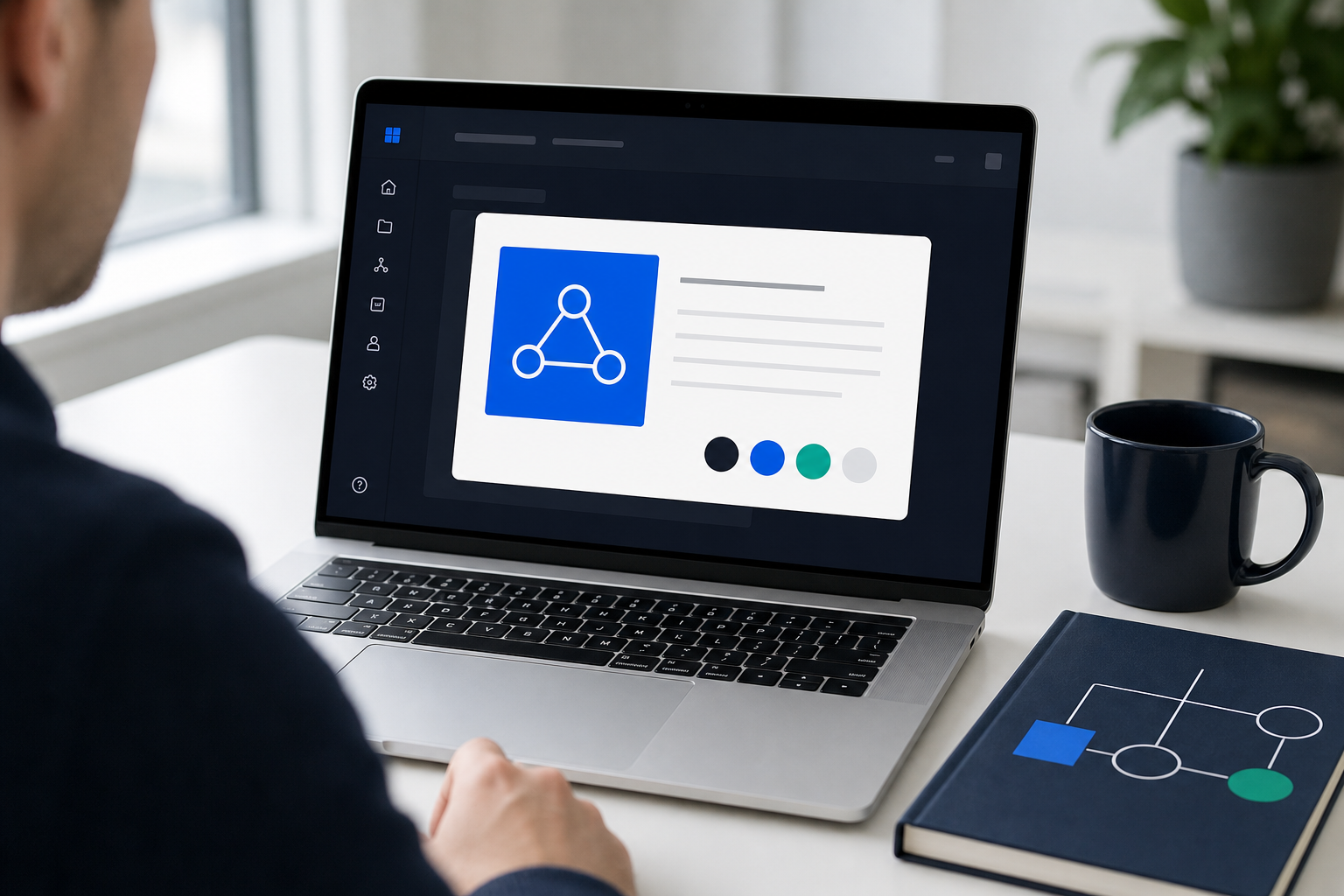
Pick the brand on the Dashboard before Generate. As of October 2026, the note Prompt-first Dashboard to Chat creation workspace, shipped on 24 August 2026, says you choose the aspect ratio and the brand on the Dashboard, and Generate opens Chat with that setup. The idea, the shape and the brand go through together. If you have not chosen the brand, do not generate yet.
Check the name, because the last brand is remembered. The same note says teams that bounce between brands get the last brand they used remembered. That helps when you return to the same client. It is also how the bakery opens when you meant to start the bike shop. Read the brand name at the start of every session.
Turn on Deep Brand Understanding for that brand only. As of October 2026, the note Deep Brand Understanding that actually drives generation, shipped on 21 August 2026, describes a per-brand switch. When it is on, new work in Visual Generator and Creative Mode stays closer to how that brand looks and feels. It works best after Brand Intelligence has learned that brand. Turn it on only for a brand that is ready. Do not assume the switch carries to the next brand.
Import each brand's catalogue into that brand only. As of October 2026, the note Product catalogue import into Brand Intelligence, shipped on 24 August 2026, says you can bring products from a website catalogue into Brand Intelligence for a brand. Treat the import as a starting set and review what landed. Pages vary. Import the bakery's site into the bakery's brand, and the bike shop's site into the bike shop's brand. A product from the wrong site is a mix-up waiting for the next ad.
This post adds no team permissions, no roles, no seat counts, no brand limit and no price. Those figures are not in the three notes.
A weekly check that catches mix-ups
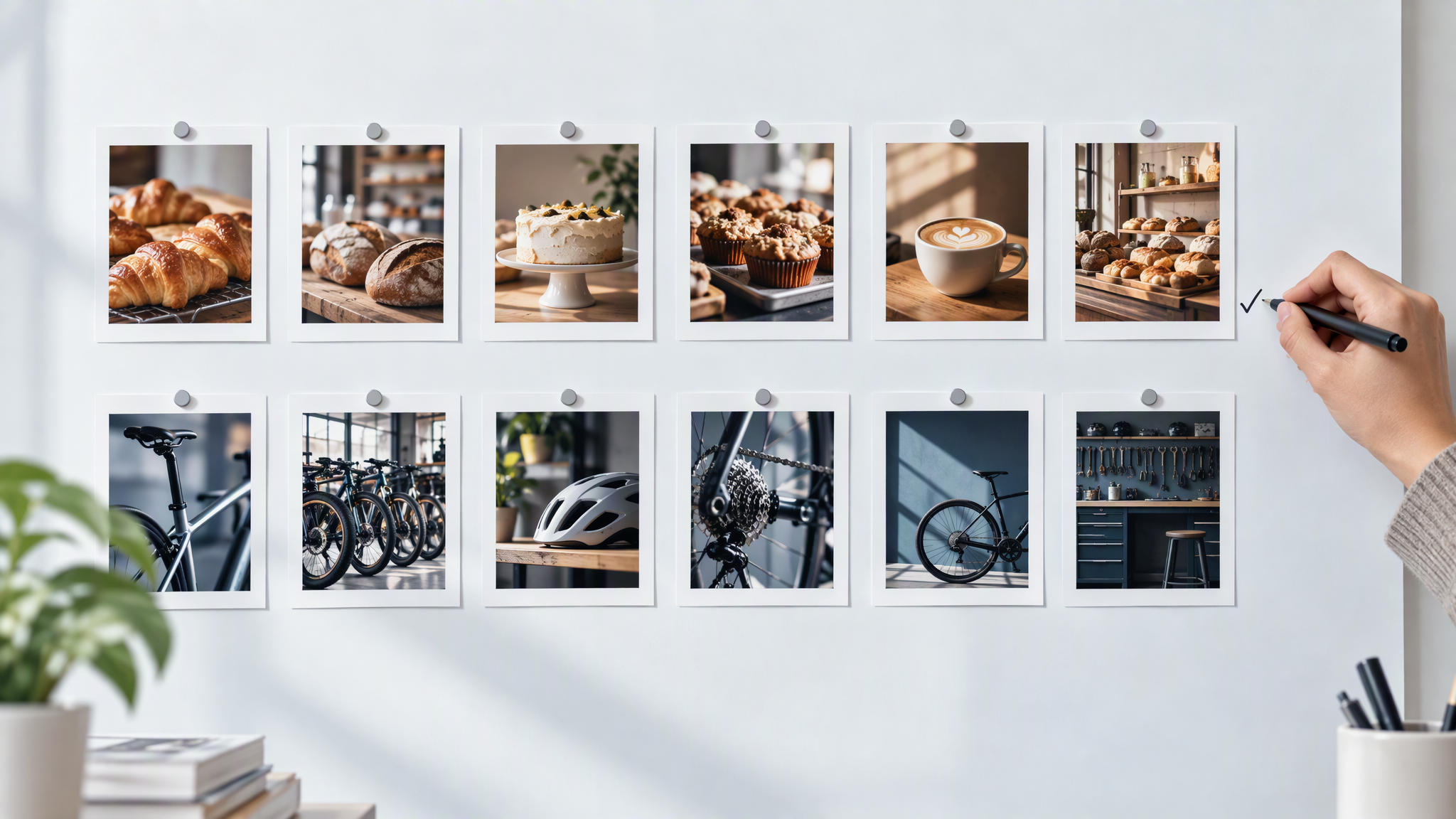
Once a week, pin the last six outputs for each brand in its own row, bakery above, bike shop below, so the rows are visible together.
Check colours, photo style, logo and products. A pass stays in its row. Anything that looks like the other row goes back: the wrong light, the wrong place, the wrong mark, or a product from the other catalogue.
If one print fails, drop it. If a whole row has drifted towards the other brand, the kit or the last-used brand is wrong. Correct the folder, confirm the brand name on the Dashboard, and generate that row again. Do not restyle the good row to match the mixed one.
Ten minutes is enough, because you are refusing files, not redesigning either brand. Do it before the week's posts are scheduled.
Handing one brand to a freelancer
When someone outside the team needs to work, give them that one brand's kit. Do not send the shared folder, the other client's Drive, or a zip of "everything we have used this year". A freelancer with two brands in one download will mix them the same way an internal folder does.
The handoff for a single brand is in How to Hand Off Your Brand Kit to Freelancers Without Visual Drift. Getting a new freelancer producing without rebuilding the look from a PDF is in How to Onboard Freelancers Without Off-Brand Posts. Those guides are about giving one brand to an outsider. This post is about you, or your small team, holding several brands at once. The rule at the boundary is the same: one kit leaves the building, and the others stay put.
More on this cluster lives under Freelancers & agencies.
If you want the brand chosen on the Dashboard before Chat opens, Brandiseer is where that picker lives, with Deep Brand Understanding switched per brand. The weekly rows are still the test.
One kit each, then the name on the screen
Give each brand its own kit, pick it before you generate, and keep the photos apart. Name the folders Client / Brand / Year. In Brandiseer, as of October 2026, choose the brand on the Dashboard before Generate, and send a freelancer one kit, not the pile.